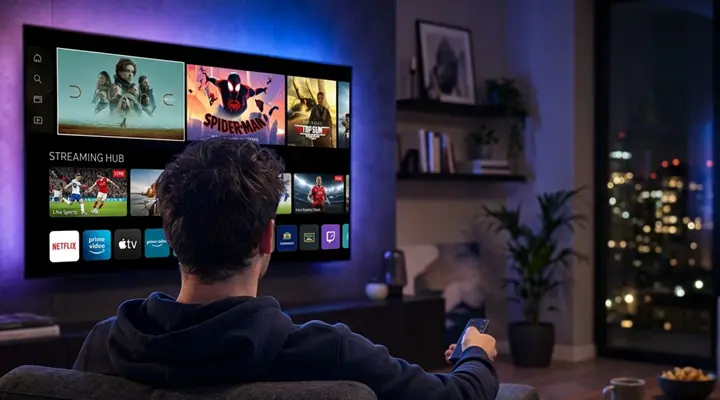
IPTV Installation Guide – Set Up a Compatible Device
To set up IPTV, you need a compatible device, a supported IPTV player, a stable internet connection and valid account or playlist details from a service you are authorised to use. Install the player using the device’s supported method, enter the correct connection information and test playback.
Before you begin
- Confirm that your device and operating-system version support the chosen player.
- Keep your account username, password, server address or playlist URL ready, as applicable.
- Check that your broadband and Wi-Fi signal are stable where you plan to watch.
- Make sure there is enough free storage for installation and updates.
- Download apps from a verified source and review any security prompts.
Choose Your Device
Select your device below to view step-by-step installation instructions.
Install on Firestick or Fire TV
For a compatible Fire TV model, search the Amazon Appstore for a suitable IPTV player. If the service’s verified instructions require Downloader, install Downloader from its recognised store listing and use only a confirmed download code or address. Previously supplied materials list code 5293334; verify it is still valid before relying on it. Device menus and sideloading permissions vary by Fire OS version.
This code is a download shortcut, not a subscription or activation code. Verify that it is still valid before using it.
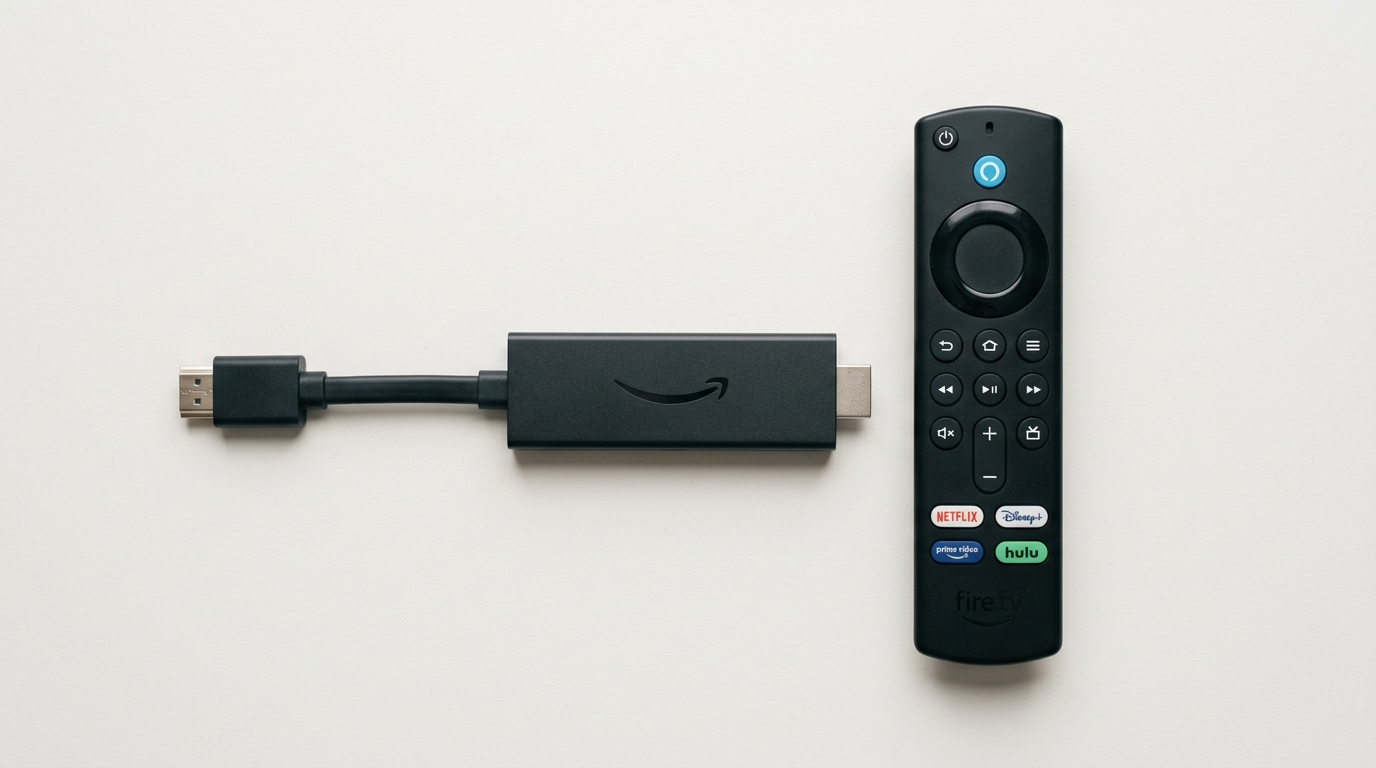
Step-by-step installation (Fire TV)
Connect Network & Storage
Connect the Fire TV device to your network and check that it has enough free storage.
Install Compatible Player
Install a compatible player through the device’s available app store, or follow the verified alternative installation route.
Choose Login Method
Open the player and choose its supported login method.
Enter Account Details
Enter the supplied username, password and server URL, or the M3U playlist URL, exactly as provided.
Load & Test Stream
Wait for the playlist and programme data to load, then test a permitted stream.
Installation on Other Compatible Devices
Install on Android TV or an Android box
Check the Google Play Store or the device manufacturer’s supported app source first. If an APK is required, verify its publisher and compatibility before installing it. Open the player, choose the connection method it supports and enter your authorised service details. Settings can differ between Android TV brands and software versions, so use the current device-specific instructions.
Search for the player on Google Play Store or follow the verified APK installation method.
Use IPTV on a Smart TV
For Samsung, LG and other Smart TVs, open the TV’s app store and check whether a compatible IPTV player is available for your model and region. Some televisions do not support every player or playlist format. If the required player is unavailable, check whether the service supports a compatible external streaming device before buying additional equipment.
Search for the player in your TV’s app store and install it if available for your model.
Use IPTV on a phone, tablet or computer
On Apple devices, use a player supported by the relevant App Store and follow its instructions. On Windows or macOS, use a compatible application from a trusted source. Enter only the playlist or account details supported by that player. Do not install an Android APK on a platform that does not support APK packages.
Use a compatible app from the App Store, Google Play, Windows or macOS.
Understanding common login methods
Xtream Codes-style login commonly uses a username, password and server URL. M3U setup uses a playlist address. Some specialised devices or players use a portal URL or device identifier. The correct method depends on your player and service. Never share your credentials publicly or paste them into a support message that does not come from a verified contact channel.
M3U Playlist URL
Enter the M3U playlist URL provided for your account.
Xtream Codes Login
Enter your username, password and server URL.
Portal URL or Device ID
Some players use a portal URL or device identifier.
Security Tips
- ✔ Use a verified download source
- ✔ Check the app name and publisher
- ✔ Review requested permissions
- ✔ Keep your device software updated
- ✔ Do not install files from strangers
- ✔ Verify any security warnings
Troubleshooting common problems
Here are solutions to common issues you may encounter.
The app will not install
Check device compatibility, free storage, file integrity and the source. Restart the device and retry only after confirming that the download is genuine. If the device blocks the file with a security warning, do not ignore the warning without verifying the source.
Login details are rejected
Check spelling, spaces, server address and whether the subscription is active. Confirm that you selected the correct login type. If the problem continues, contact the service through a verified support channel and never post your password in a public forum.
Channels buffer or stop
Test other legitimate video services to see whether the issue is limited to one stream. Restart the router and device, improve Wi-Fi signal or try Ethernet if available. Pause other downloads on the network. Playback can also be affected by the source stream or provider-side maintenance, so contact support if the issue persists.
The programme guide is empty
Some players take time to load EPG data. Check the playlist or account configuration and the player’s guide settings. If the service does not supply programme data for a channel, the guide may remain incomplete.
Setup checklist
A customer using a compatible Fire TV device can install a supported player, enter their authorised login details, wait for the channel list to load and test playback. If the same credentials work on another supported device but not the Fire TV, the problem may be related to the app, device configuration or network rather than the account itself.
FAQs
What do I need to install IPTV?
A compatible device, supported player, stable internet connection and valid service login or playlist details.
How do I install IPTV on Firestick?
Install a compatible player through the device’s supported app source, then follow verified setup instructions and enter your authorised account details.
Can I use the same steps on every Smart TV?
No. App availability and menus vary by manufacturer, model, region and operating-system version.
What is the difference between M3U and Xtream Codes login?
M3U uses a playlist URL; Xtream Codes-style setup usually uses a username, password and server URL. Use the method your player and service support.
What internet speed do I need?
Requirements vary with resolution, stream bitrate and other devices using your network. A stable connection matters as well as the advertised speed.
Why does my IPTV player show no channels?
Check that the subscription is active, the login or playlist is correct and the player supports the supplied format.
Why is playback buffering?
Possible causes include weak Wi-Fi, network congestion, device performance or problems with the stream source. Test the connection and contact support if needed.
Is Downloader code 5293334 guaranteed to work?
No code should be assumed current. Verify it and the destination before using it; update the guide if the code changes.
Need help setting up the app?
Follow our installation guide or contact us for verified setup support.