Sky Glass IPTV Not Working Today? Quick Checklist
You sit down to watch, and nothing loads. If your IPTV is not working, don’t panic. Most problems come from a handful of causes you can check in about ten minutes.
Quick answer: restart your device and router, confirm your internet works on another device, turn off any VPN, check your login details and subscription status, then clear the app cache. If it still fails, contact support with your device, app and the exact error message.
This checklist applies to Sky Glass IPTV UK and works for most IPTV players on Firestick, Android, Smart TVs and PCs.
Why Is IPTV Not Working Today?
When people ask why IPTV is not working today, the cause is usually one of these:
- Your internet is down or unstable
- Wrong or expired login details, or an expired subscription
- A VPN or DNS setting interfering with the connection
- An outdated, crashed or overloaded app
- A full device, especially older Firesticks
- Too many connections using the same account
- A temporary issue with a server, channel or stream
The checklist below follows this order, from the quickest to the slowest check.
Step 1: Check Whether It’s Everything or Just One Thing
Before changing settings, spot the pattern.
- Nothing loads at all: your internet, login or subscription is the likely cause.
- App opens but channels fail: a connection, login or stream issue.
- One channel fails: likely a problem with that stream. Try another channel.
- Fails only at certain times: possible congestion or maintenance.
This tells you where to start.
Step 2: Test Your Internet Connection
Open a website or a video app on another device on the same network. If those fail too, restart your router (unplug it for 30 seconds) and call your internet provider if it stays down.
IPTV Not Working on WiFi
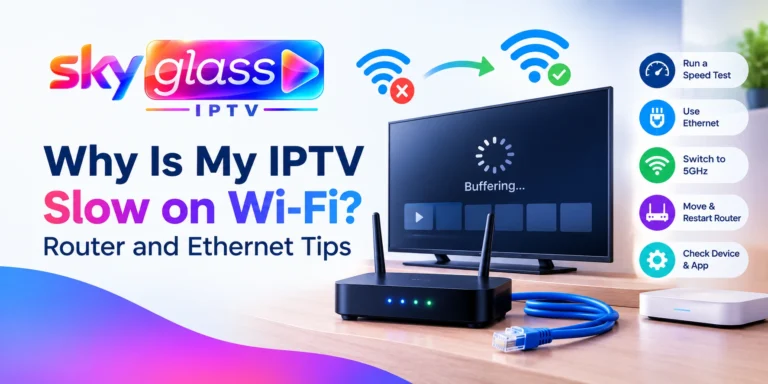
If the internet works elsewhere but IPTV is not working on WiFi, the signal may be weak or the band overloaded.
- Move closer to the router or connect to the 5GHz band.
- Use an Ethernet cable if possible.
- Forget and rejoin the Wi-Fi network, then restart the device.
- Check for a poor signal using your device’s Wi-Fi settings.
Step 3: Restart the App, Device and Router
It sounds simple, but it fixes a large share of faults.
- Close the IPTV app completely.
- Restart your TV, Firestick, phone or PC.
- Restart the router.
- Reopen the app and test a channel.
Step 4: Turn Off Your VPN
If you use a VPN, switch it off and test again.
IPTV Not Working with VPN
When IPTV is not working with a VPN, the VPN is often the cause. VPNs can slow connections, change your location, or be blocked by the network or app. Disconnect it and check if the service returns. If it works without the VPN, leave it off for streaming. For more on this, see our guide on the IPTV buffering fix.
Step 5: Check Your Login Details and Subscription
If the app asks for a login or shows an error such as “invalid” or “authentication failed”:
- Re-enter your username, password and server details carefully. Watch for extra spaces and capital letters.
- Confirm your subscription hasn’t expired. Check the plan terms on the IPTV subscription page.
- Make sure the account isn’t in use on more devices than your plan allows.
- If you’ve lost your details, contact support.
Step 6: Clear the Cache and Update the App
A cluttered or outdated app often stops working.
- Firestick: Settings > Applications > Manage Installed Applications > your app > Clear cache.
- Android: Settings > Apps > your app > Storage > Clear cache.
- Update the app. If you use the Sky Glass IPTV app, download the current version from the APK page.
- Free up storage by removing apps you don’t use.
Use “Clear data” only if you have your login details ready, because it signs you out.
Fixes by Device
IPTV Not Working on Firestick
When IPTV is not working on a Firestick:
- Restart the stick and check Wi-Fi.
- Clear the app cache and free storage.
- Update or reinstall the app using the Firestick steps.
- Use an Ethernet adapter if the signal is weak.
- Update the Fire OS in Settings.
IPTV Not Working on Android
For IPTV not working on Android phones, tablets and boxes:
- Check mobile data or Wi-Fi.
- Turn off battery saver and data saver for the app.
- Clear the cache and update the app.
- Reinstall the app if needed. The Android installation guide shows the steps.
“Unfortunately, IPTV Smarters Pro Has Stopped”
This Android message means the app crashed. To fix it:
- Restart the phone or device.
- Clear the app cache, then try again.
- Free up storage and close other apps.
- Update the app, or uninstall and reinstall it.
- Update your Android system if an update is waiting.
If it keeps crashing, try a different compatible player or contact support with your device model and Android version.
Why IPTV Is Not Working on Samsung TV
If IPTV is not working on your Samsung TV:
- App availability depends on your TV’s model, year and app store, so confirm that your chosen player is available.
- Restart the TV and check it has a good network connection. A wired connection is best.
- Update the TV’s software.
- If your TV can’t run the player, use an external device such as a Firestick. See the Smart TV installation steps.
Using Another Provider’s App, Such as Ursa?
If you search Ursa IPTV not working or use another provider’s app, the basic checks above still apply: internet, restart, VPN, cache and login. However, we can’t diagnose another provider’s servers or accounts, so contact that provider for account-specific problems. For Sky Glass IPTV, follow the steps in this guide or contact our support team.
Step 7: Contact Support with the Right Details
If nothing has worked, contact support with:
- Your device and model
- The app name and version
- The exact error message (a screenshot helps)
- Your connection type and whether it works on other devices
- What you’ve already tried
You can also request a free trial on WhatsApp to test a different device and see whether the problem follows your setup.
Quick Troubleshooting Table
| What you see | Most likely cause | Try |
|---|---|---|
| Nothing loads | Internet or login | Steps 2, 5 |
| Works on mobile data, not Wi-Fi | Wi-Fi or router | Step 2 |
| Works without VPN only | VPN interference | Step 4 |
| Login or authentication error | Details or expiry | Step 5 |
| App crashes or closes | Cache, storage, update | Step 6 |
| One channel fails | Stream issue | Step 1 |
| Samsung TV can’t run the app | Model or store limits | Use Firestick |
Frequently Asked Questions
Why is my IPTV not working today?
Usually internet problems, wrong login details, an expired subscription, a VPN or an outdated app. Follow the checklist in order.
Why is IPTV not working on my Firestick?
Restart the stick, clear the app cache, free storage, check Wi-Fi and update or reinstall the app.
What does “Unfortunately IPTV Smarters Pro has stopped” mean?
The app crashed. Clear the cache, free storage, update or reinstall the app and restart the device.
Why does IPTV work on mobile data but not Wi-Fi?
Your Wi-Fi or router is the likely cause. Try 5GHz, Ethernet or restarting the router.
Does a VPN stop IPTV from working?
It can. VPNs may slow or block streams, so turn it off and test.
Why is IPTV not working on my Samsung TV?
The app may not be supported on your model, or the TV’s network or software may need attention. An external device is often the simplest fix.
How do I know if my subscription has expired?
Check your plan dates and renewal terms, or ask support. See the IPTV subscription page for plan lengths.
Still Not Working?
Contact support with your device details and error message. For setup help, see the installation guide, or read the full Sky Glass IPTV UK guide.