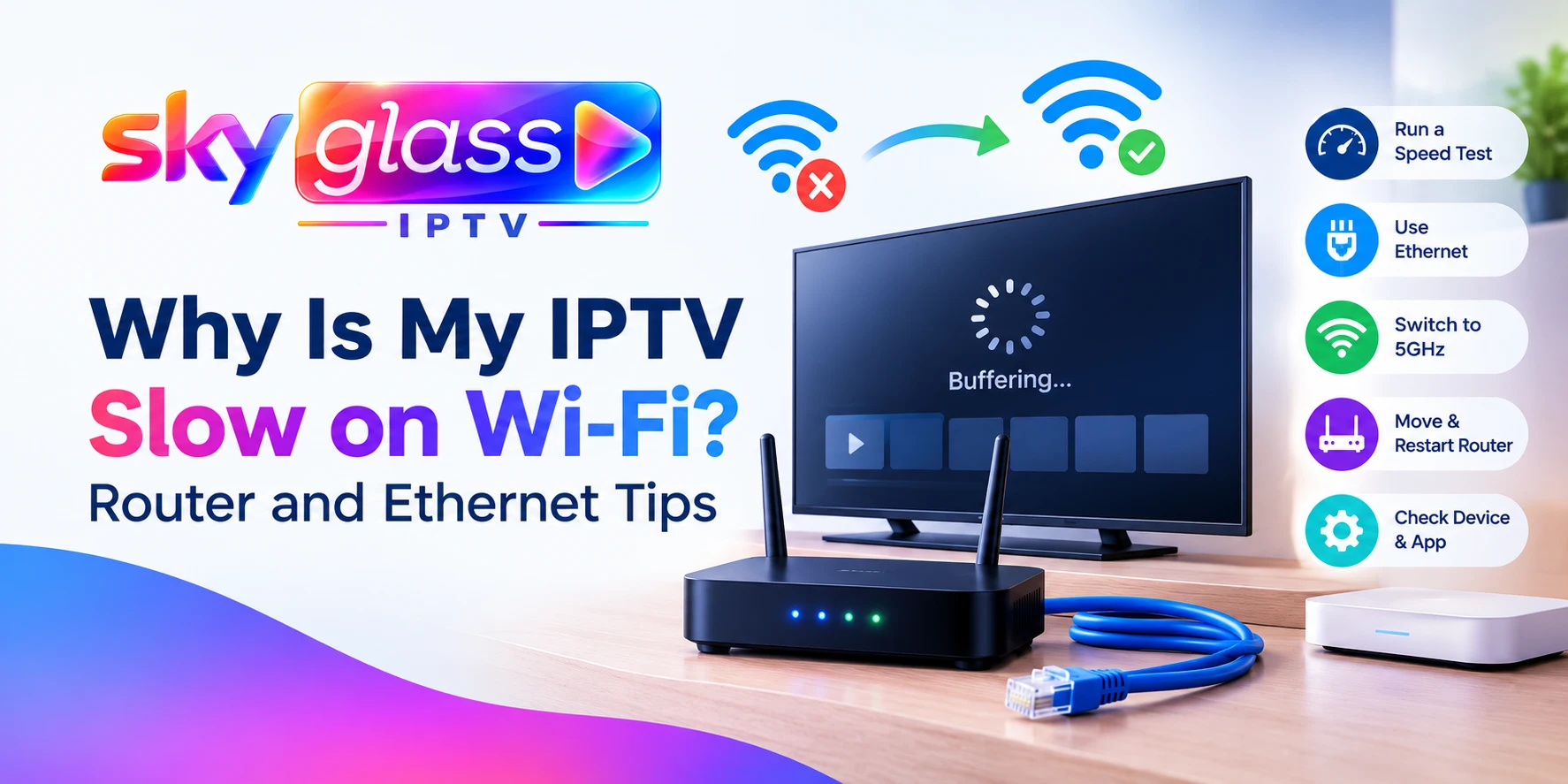
Why Is My IPTV Slow on Wi-Fi? Router and Ethernet Tips
If your IPTV is slow on Wi-Fi, the problem is usually your home network, not the service. Wi-Fi is the weakest link in most streaming setups, and a few small changes often make a big difference.
Quick answer: connect your streaming device with an Ethernet cable if you can. If you can’t, switch to the 5GHz band, move the router closer, restart it, and stop other devices hogging the connection. Then run an IPTV speed test to check you have enough bandwidth.
This guide covers IPTV lagging on Firestick, Android, Smart TVs and PCs, and applies to players such as IPTV Smarters Pro.
Why Is IPTV Slow on Wi-Fi?
Wi-Fi shares airwaves with your neighbours and every device in your home. Streaming needs a steady flow of data, so a drop that you’d never notice while browsing can freeze or slow a stream. Common causes:
- Distance and walls between the router and your device
- The crowded 2.4GHz band, which suffers more interference
- Too many devices using the connection at once
- An old router or outdated firmware
- Wi-Fi extenders that cut speed
- Interference from microwaves, baby monitors or cordless phones
- A slow or full streaming device
Step 1: Run an IPTV Speed Test
Start by measuring what your connection actually delivers. An IPTV speed test is simply an internet speed test run on the device you stream on.
- Use a speed test app or website (many Android devices and Fire TV sticks can run one through a browser or app).
- Test where you watch, not next to the router.
- Test at the time you usually stream, such as evenings or match days.
As a guide, each stream needs roughly:
- 10 Mbps for HD
- 15 to 20 Mbps for Full HD
- 25 Mbps or more for 4K
Add up the streams running at once. If the result is far lower near your TV than near the router, Wi-Fi is the bottleneck. If it’s low everywhere, speak to your internet provider.
Step 2: Use Ethernet If You Can
A wired connection is the most reliable fix for IPTV slow on Wi-Fi.
- Fire TV Stick: use the official Ethernet adapter, which also powers the stick.
- Android TV boxes and Smart TVs: most have an Ethernet port.
- Cable too far? Use a longer cable, or run one along the skirting board.
If you can’t run a cable, a powerline adapter can carry the connection through your home’s electrical wiring. Results depend on your wiring, so try one with a return policy.
Step 3: Switch to the 5GHz Band
Most modern routers broadcast two networks: 2.4GHz and 5GHz.
- 2.4GHz reaches farther but is slower and more crowded.
- 5GHz is faster and cleaner, but works best at shorter range.
Connect your streaming device to the 5GHz network if it’s in the same room or nearby. The names often look similar, such as “HomeWiFi” and “HomeWiFi-5G”. If your router merges both under one name, check its settings page.
Step 4: Move or Reposition Your Router
Where the router sits matters more than most people think.
- Place it high up and in an open area, not inside a cabinet.
- Keep it away from microwaves, cordless phones and large metal objects.
- Put it closer to the TV or the room you stream in most.
- Point antennas (if adjustable) vertically.
Step 5: Restart the Router and Update Its Firmware
Routers build up faults over time.
- Unplug the router for 30 seconds, then plug it back in.
- Log in to the router settings (details are usually on a label underneath).
- Check for a firmware update and install it.
Restarting weekly is a simple habit if you stream a lot.
Step 6: Reduce Load on Your Network
Streaming slows down when other devices compete for bandwidth.
- Pause cloud backups, game downloads and software updates.
- Disconnect devices you aren’t using.
- Avoid several 4K streams at once on a basic broadband plan.
- If your router has QoS (Quality of Service) settings, give your streaming device priority. Menus vary by router.
Step 7: Change the Wi-Fi Channel
If neighbours use the same channel, signals clash. Many routers choose a channel automatically, but a crowded area can still cause trouble. In your router settings, try a different channel, or use a Wi-Fi analyser app on your phone to find a quieter one. This is more useful on 2.4GHz.
Step 8: Avoid or Replace Weak Extenders
A cheap Wi-Fi extender can halve your speed. If you need coverage in another room:
- Use a mesh Wi-Fi system or a wired access point.
- Or connect the device by Ethernet or powerline instead.
Step 9: Check the Streaming Device and App
If the Wi-Fi tests fine, the device or app may be slow.
- Clear the app cache and free up storage. On Firestick: Settings > Applications > Manage Installed Applications > your app > Clear cache.
- Update the app. If you use the Sky Glass IPTV app, get the current build from the APK download page.
- Restart the device and update its software.
- Try another compatible player if one app misbehaves.
IPTV Smarters Pro Settings Worth Checking
In IPTV Smarters Pro and similar players, you may find options for decoder type, stream format and the player used. Try switching them one at a time. Settings differ by app and version, so only change what your player offers.
What Is the Buffer Size Limit in IPTV?
Some players let you adjust the buffer size, which is the amount of video stored ahead of playback. A bigger buffer can smooth short drops, but it delays channel starts, and many apps cap how large it can go, so there is an IPTV buffer size limit in practice. It won’t fix a connection that is too slow overall. Raise it in small steps rather than to the maximum.
Does a VPN Help with IPTV Slow Wi-Fi?
People often ask whether a VPN helps with IPTV buffering or lag. In most cases, no. A VPN adds an extra hop and usually lowers your speed. It only makes sense if a speed test shows your provider is slowing certain traffic, which is uncommon. Fix your Wi-Fi first.
Best VPN for IPTV?
Searches for the best VPN for IPTV are common, but we don’t recommend one as a speed fix. If you want a VPN for privacy, choose a reputable paid provider with good speeds and a no-logs policy, and compare your speed with it on and off. If it slows your stream, switch it off. Never rely on a VPN to fix Wi-Fi problems.
IPTV Keeps Freezing or Lagging After These Fixes?
If IPTV keeps freezing even on a good connection, the issue may be with a specific channel or the time of day. See our guides on IPTV freezing during live sports and the IPTV buffering fix. If nothing loads at all, use the IPTV not working checklist.
When you contact support, include your device, connection type, speed test result and the affected channels. You can also request a free trial on WhatsApp to test another device.
Quick Fix Table
| Problem | Likely cause | Fix |
|---|---|---|
| Fast near router, slow at TV | Distance or walls | Ethernet, 5GHz, move router |
| Slow in the evening | Congestion | Pause other devices, test at peak |
| Lags only on Firestick | Cache or storage | Clear cache, free space |
| Drops every few seconds | Interference or old router | Change channel, update firmware |
| Slow in far rooms | Weak signal or extender | Mesh, powerline or Ethernet |
Frequently Asked Questions
Why is my IPTV slow on Wi-Fi but fine on Ethernet?
Wi-Fi is affected by distance, walls and interference. Ethernet avoids all of that, so a wired connection is steadier.
What speed do I need for IPTV?
Around 10 Mbps for HD and 25 Mbps or more for 4K, per stream. Add up the streams running at once.
Is 5GHz better than 2.4GHz for IPTV?
Usually, yes, if you’re close to the router. 5GHz is faster and less crowded, while 2.4GHz reaches farther.
Can a Wi-Fi extender cause IPTV lagging?
Yes. Extenders often cut speed. A mesh system, powerline adapter or Ethernet is a better choice.
Does a VPN make IPTV faster?
Normally not. It tends to slow your connection, so test with and without it.
How do I run an IPTV speed test?
Run an internet speed test on the same device you stream on, in the room and at the time you watch.
Will upgrading my plan fix slow Wi-Fi?
Not by itself. A faster internet plan won’t help if the weak point is your Wi-Fi signal. Check your streaming plan options on the IPTV subscription page only if you need more screens.
Still Slow?
Try Ethernet first, then work through the router and device steps above. For setup help, see the installation guide or the Firestick setup steps. You can also read the full Sky Glass IPTV UK guide.