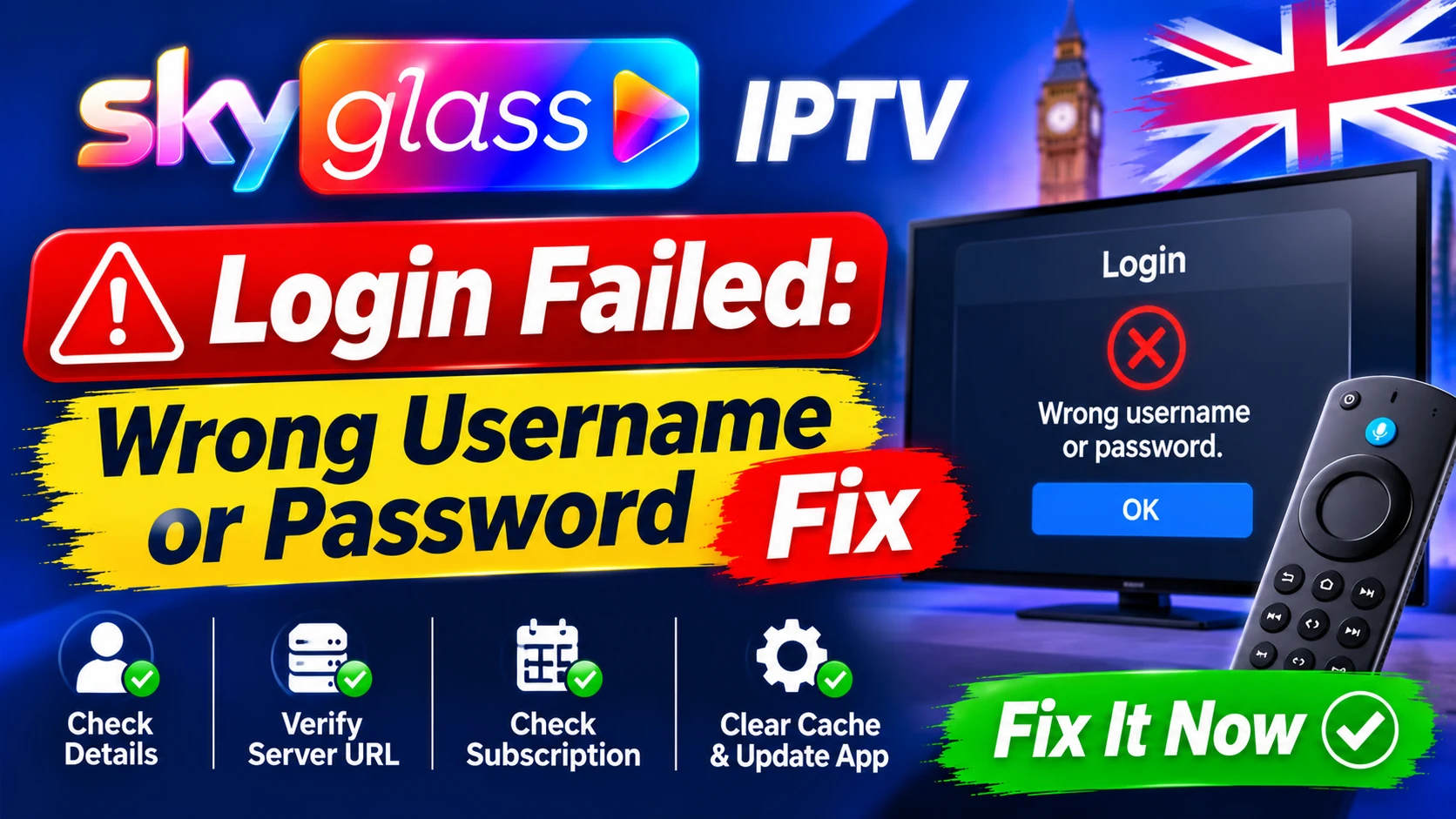
Sky Glass IPTV Login Failed: Wrong Username or Password Fix
You type your details, press login, and the app says it failed. If your IPTV login failed, don’t assume your subscription is gone. Most login errors come from a small typing mistake, a wrong server address or an expired plan, and each is easy to check.
Quick answer: re-enter your username, password and server URL exactly as given, with no spaces. Check that your subscription is active and that your device’s date and time are correct. Turn off any VPN, clear the app cache and try again. If it still fails, contact support with the exact error message.
This guide applies to Sky Glass IPTV UK and to IPTV Smarters Pro and most other IPTV players on Firestick, Android, Smart TVs and PC.
Why Did My IPTV Login Fail?
If you’re wondering why IPTV login failed, the cause is usually one of these:
- A typing error in the username, password or server address
- Extra spaces or capital letters added when copying and pasting
- The wrong login method chosen in the app
- An expired or inactive subscription
- Too many devices using the same account
- A wrong date or time on your device
- A VPN or network problem blocking the connection
- An outdated or faulty app
- A temporary server or connection issue
Work through the fixes below in order. The first four solve most cases.
Fix 1: Re-Enter Your Details Carefully
Most login failures are typos. Try this:
- Open your welcome message or account details from support.
- Type your username and password manually, instead of pasting them.
- Check upper and lower case letters. Passwords are case sensitive.
- Look out for confusing characters, such as the number 0 and the letter O, or the number 1 and the letter l.
- Make sure there is no space before or after any field.
If you do paste details, a hidden space at the end is a very common culprit. Delete any trailing space and try again.
Fix 2: Check the Server URL and Login Method
Your login needs the right server address as well as the right username and password.
- Enter the server URL exactly as provided, including
http://orhttps://and any port number. - Don’t add extra characters or a slash at the end unless your details include one.
- In apps such as IPTV Smarters Pro, make sure you chose the login method that matches the details you were given. Some accounts use an Xtream Codes API login with a server, username and password, while others use an M3U playlist URL.
If you’re not sure which method to use, check the installation guide or contact support and ask which one your plan uses.
Fix 3: Confirm Your Subscription Is Active
An expired, paused or unpaid account will fail to log in, even with perfect details.
- Check your plan start and end dates.
- Look at the plan terms on the IPTV subscription page.
- If you renewed recently, allow a short time for the account to update, then try again.
- If payment went through but your account still doesn’t work, contact support with your order details.
Fix 4: Check for Too Many Connections
Each plan allows a set number of devices at the same time. If you try to log in on more screens than your plan allows, the extra login may be refused.
- Close the app on other devices, such as a second TV, phone or tablet.
- Wait a minute or two.
- Log in again on the device you want to use.
If you want more screens, compare the options on the subscription page.
Fix 5: Check Your Device’s Date and Time
A wrong date or time can cause login and authorisation errors, because secure connections rely on accurate time.
- On Firestick, go to Settings > Preferences > Time Zone and check the time zone.
- On Android, go to Settings > Date & time and switch on automatic date and time.
- On a Smart TV, switch on automatic time if the option exists.
Restart the app after you change it.
Fix 6: Turn Off Your VPN and Test Your Connection
A VPN can interfere with logins, because it changes your public IP address and route. Turn the VPN off, reopen the app and try again. Also check that your internet works in another app. If your connection is weak or dropping, see our guides to slow Wi-Fi and router settings and the IPTV buffering fix.
Fix 7: Clear the App Cache and Update the App
A faulty app session can reject a correct login.
- Firestick: Settings > Applications > Manage Installed Applications > your app > Clear cache.
- Android: Settings > Apps > your app > Storage > Clear cache.
- Update the app. If you use the Sky Glass IPTV app, get the current version from the APK download page.
Clear data only if you have your details ready, because it removes saved logins.
IPTV Smarters Pro Login Errors Explained
IPTV Smarters Pro Login Failed
If your IPTV login failed in Smarters Pro, check the method first. Make sure you didn’t enter Xtream Codes details in a playlist field, or the other way round. Then re-check the server URL, username and password and follow Fixes 1 to 7.
IPTV Smarters Failed to Authorize
“Failed to authorize” means the server did not accept the login. The usual causes are:
- A wrong username, password or server URL
- An expired or inactive account
- A connection limit reached
- A VPN, network problem or security rule rejecting the request
- A wrong date and time on the device
Work through the fixes above, and contact support if the message stays the same.
IPTV Smarters Retry
If the app keeps showing retry or loops back to the login screen, it usually can’t reach the server or can’t validate your account. Check your internet, confirm the server URL, turn off any VPN, clear the app cache and restart the device. If retry keeps appearing on every network, tell support the exact message and when it started.
“Unfortunately, IPTV Smarters Pro Has Stopped”
This Android message means the app crashed, sometimes right after you press login. To fix it:
- Restart your phone or device.
- Clear the app cache.
- Free up storage and close other apps.
- Update the app, or uninstall and reinstall it from the APK page.
- Install any waiting Android system update.
If it keeps crashing, try another compatible player or contact support with your device model and Android version.
Is My IPTV Blocked?
If you search IPTV blocked, you might be dealing with one of several different things. A login can be refused because of:
- An account issue, such as expiry, a disabled account or too many connections
- A network rule, where your IP address, network or VPN is restricted by a security rule on the server
- Repeated failed attempts, which can trigger temporary protection
Don’t try random workarounds. If you believe your account or network is being blocked by mistake, contact support with the exact error message, your device and whether it works on another network such as a phone hotspot. We can then check your account and connection. For a deeper look at connection-related errors, see our guide to the IPTV not working checklist.
Why Is IPTV Not Working Today?
If you can log in but nothing plays, the problem is somewhere else, such as your connection, the channel or the app. Use our IPTV not working checklist to find the cause quickly.
Keep Your Login Details Safe
- Don’t share your username and password publicly or on social media.
- Share them only through official support channels when you need help.
- Be careful with websites offering “free usernames and passwords”. They can be scams, can steal your data and don’t offer a reliable service.
- Keep a copy of your login details somewhere safe, so you can enter them correctly after a reset or reinstall.
What to Send Support if It Still Fails
Contact support and include:
- The exact error message (a screenshot helps)
- Your device and app, plus the app version
- Whether you use Xtream Codes or an M3U link
- Whether you use a VPN
- Whether it works on another network
- When the problem began and what you’ve already tried
Don’t post your password in a public message. Share your details only through our official channels. You can also request a free trial on WhatsApp to test a different device or app.
Quick Troubleshooting Table
| Error or symptom | Likely cause | Fix |
|---|---|---|
| “Wrong username or password” | Typo or hidden space | Fix 1 |
| Login fails with correct details | Wrong server URL or method | Fix 2 |
| Worked before, now fails | Expired or inactive plan | Fix 3 |
| Fails only when other devices are on | Connection limit | Fix 4 |
| Authorization errors | Wrong date or time | Fix 5 |
| Fails only with a VPN on | VPN interference | Fix 6 |
| App closes or crashes at login | Cache, storage or old version | Fix 7 |
| Retry loop | Server unreachable or network issue | Fixes 2, 6 |
Frequently Asked Questions
Why does my IPTV login keep failing?
Usually a wrong username, password or server URL, an expired plan, a connection limit or a VPN issue.
What does “failed to authorize” mean in IPTV Smarters?
The server didn’t accept the login. Check your details, subscription, connection limit, date and time, and VPN.
How do I fix IPTV Smarters Pro login failed?
Choose the right login method, re-enter your details by hand, confirm your plan is active, and clear the app cache.
Can the wrong date and time cause a login failure?
Yes. Incorrect time can break secure connections. Switch on automatic date and time.
Why does the app keep saying retry?
It can’t reach the server or validate your account. Check your internet, server URL and VPN.
What if I lost my username and password?
Contact support and they will help you recover your details.
Is my IPTV account blocked?
It might be an expiry, a connection limit or a network rule. Contact support with the exact message so they can check.
Can I use my login on two devices?
Only up to the number of connections in your plan. Check the subscription page.
Will reinstalling the app fix login errors?
Only if the problem is with the app. It can’t fix a wrong password, an expired plan or a blocked connection.
Still Can’t Log In?
Check your details, server URL and subscription, then contact our support team with your error message. For setup help, see the installation guide, or read the full Sky Glass IPTV UK guide.