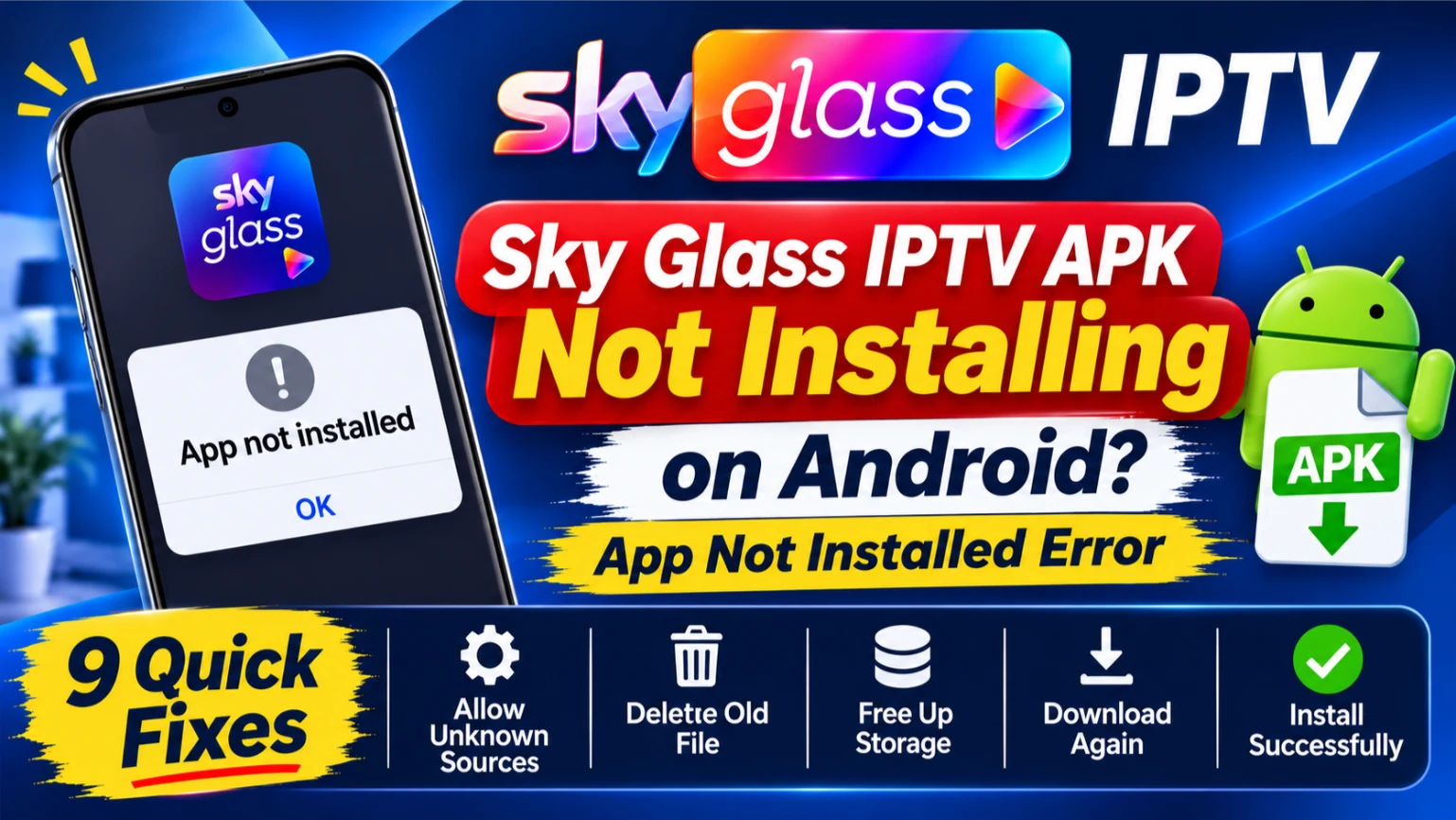
Sky Glass IPTV APK Not Installing on Android: App Not Installed Error
You download the file, tap it, and Android says “App not installed”, shows a parsing error, or just freezes on “Installing”. If your IPTV APK is not installing, the fix is almost always one of a few settings or file problems.
Quick answer: allow installs from unknown sources for the app you’re using (browser, file manager or Downloader), free up storage, delete the old file and download the APK again from the official APK page. If an older version is already installed, uninstall it first. Also check that your device meets the app’s requirements.
This guide applies to the Sky Glass IPTV app and most IPTV APKs on Android phones, tablets, Android TV and Firestick.
Why Is My IPTV APK Not Installing?
If you’re wondering why your IPTV APK is not installing, the usual causes are:
- Installs from unknown sources are blocked on your device
- The download is incomplete or corrupted
- Not enough storage space
- An older version conflicts with the new one
- The APK isn’t compatible with your Android version or device type
- Android’s security (Play Protect) is blocking it
- The file came from an unreliable source or was renamed
- A temporary system glitch
Work through the fixes below in order.
Fix 1: Download the APK from the Official Source Only
Always download the file from the Sky Glass IPTV APK page. Files from random websites, forwarded chat messages or “modded” versions are the most common cause of IPTV APK installation failed errors, and they can also be unsafe.
A genuine APK should:
- Come from the official page
- Have a sensible file size (not a few kilobytes)
- End in
.apk
Fix 2: Allow Installation from Unknown Sources
If you see IPTV app installation blocked, Android is stopping installs from outside the Play Store. You must allow it for the specific app you’re using to open the file.
On modern Android phones and tablets (Android 8 and later):
- Open Settings > Apps > Special app access > Install unknown apps. (The path varies by brand.)
- Choose the app you used to download or open the APK, such as your browser or file manager.
- Turn on Allow from this source.
- Go back and tap the APK file again.
On older Android versions: go to Settings > Security and switch on Unknown sources.
On Android TV: open Settings > Device Preferences > Security & restrictions > Unknown sources, and allow the app you’re using. Menu names vary by TV and version.
How Do I Allow IPTV APK Installation from Unknown Sources?
Use the steps above. The setting is per app on newer Android, which is why it sometimes seems to be “on” but still fails. Check you enabled it for the right app. Turn it off again after installing if you prefer.
Fix 3: Free Up Storage Space
If storage is nearly full, installs fail or hang. Check Settings > Storage, then:
- Delete unused apps
- Clear photos, videos and downloads you don’t need
- Delete old installer files from your Downloads folder
- Clear cached data
Aim for a comfortable amount of free space, not just the minimum. A full device is also a common reason for an IPTV APK stuck on installing.
Fix 4: Delete the Old File and Download Again (APK Parsing Error)
A parsing error (“There was a problem parsing the package”) usually means the file is damaged, incomplete or not suitable for your device.
- Delete the downloaded APK.
- Connect to a stable network.
- Download the file again from the official page and wait for it to finish fully.
- Open it from your Downloads folder.
If you’re asking about an IPTV APK not downloading at all, check your internet, storage and browser, try another browser, or switch from mobile data to Wi-Fi.
IPTV APK Installation Failed Due to Parsing Error: Other Causes
- The file was downloaded as a different format or renamed
- The download was interrupted by a bad connection
- The APK isn’t compatible with your Android version (see Fix 7)
Fix 5: Uninstall the Old Version First (“App Not Installed”)
If the screen says “App not installed” or “IPTV APK says app not installed”, a previous version may be clashing with the new one, especially if the earlier file came from a different source.
- Go to Settings > Apps and find the existing IPTV app.
- Choose Uninstall.
- Restart the device.
- Install the new APK again.
Make sure you have your username, password and server details before uninstalling, because you’ll need to sign in again.
Fix 6: Check Play Protect and Security Prompts
Android’s Google Play Protect may warn about apps from outside the store. If you’re sure the file came from the official page:
- Tap More details on the warning.
- Choose Install anyway.
Only do this for files from the official source. If the warning keeps appearing for a file from anywhere else, don’t install it. Some phones also have a manufacturer security app that blocks installs, so check it if installs fail without a clear message.
Fix 7: Check Compatibility (IPTV APK Not Compatible with Device)
If you see IPTV APK not compatible with your device, or a message about Android version, check the app’s requirements on the APK page.
- Android version: very old versions may not support newer apps. Update your system if an update is available.
- Device type: some phones, TV boxes and Firesticks need a different build. Don’t install a file meant for another platform.
- Processor type: a mismatched build can fail to install on some devices.
If your device can’t run the app, try a Firestick or newer Android box, or contact support for the right file.
Fix 8: Fix an IPTV APK Stuck on Installing
If the install bar never finishes:
- Wait a couple of minutes, in case the device is just slow.
- Press back, then restart the device.
- Free up storage and close other apps.
- Try installing with a different file manager.
- Reinstall from a fresh download.
Fix 9: Restart, Update and Try Again
Restart your device, install any waiting system updates, and run the install again. This clears many temporary faults.
IPTV APK Not Installing on Android TV
For IPTV APK not installing on Android TV:
- Allow unknown sources for the specific app you use to open the file, such as a file manager.
- Many Android TV devices don’t include a file manager. Install one from the Play Store, or use a tool such as Downloader.
- Make sure there is enough storage. TV boxes often have little.
- Check that your TV box’s Android version meets the app’s requirements.
- Update the TV system software.
IPTV APK Won’t Install on Firestick (Including Firestick 4K)
For IPTV APK not installing on Firestick, including the 4K model:
- Go to Settings > My Fire TV > Developer options and allow Install unknown apps for Downloader. On older software this is called Apps from Unknown Sources. Menu names vary by Fire OS version.
- Make sure you have enough free storage. Delete unused apps.
- Open Downloader and enter the code or link shown on the APK page.
- Wait for the download to finish, then choose Install.
- If the install fails, clear the cache of Downloader, delete the old file and try again.
- If an old version exists, uninstall it first.
If the Firestick is slow or full, see our guide to Firestick lagging and storage. For step-by-step screens, use the Firestick installation guide.
How to Install an IPTV APK Manually and Safely
- Download the file from the official APK page.
- Allow unknown sources for the app you’ll use to open it.
- Open the file from your Downloads folder and tap Install.
- Open the app and log in with the details from your provider.
- Turn off the unknown sources setting again if you want to keep your device locked down.
To stay safe:
- Use official downloads only.
- Don’t install files shared in chat groups or by strangers.
- Check the permissions the app asks for.
- Keep your device and security settings up to date.
After You Install It: If the App Won’t Log In or Play
Installation is only the first step. If the app installs but won’t sign in, see our IPTV login failed guide. If the app opens but nothing plays, use the IPTV not working checklist.
Quick Troubleshooting Table
| Message or symptom | Likely cause | Fix |
|---|---|---|
| “App not installed” | Old version or conflict | Fix 5 |
| Parsing error | Corrupt or incomplete file | Fix 4 |
| Install blocked | Unknown sources off | Fix 2 |
| Stuck on installing | Low storage or slow device | Fixes 3, 8 |
| File won’t download | Connection or storage | Fix 1, 4 |
| Warning from Play Protect | Security prompt | Fix 6 |
| Not compatible | Android version or device | Fix 7 |
Frequently Asked Questions
Why is my IPTV APK not installing?
Usually because unknown sources are blocked, the file is corrupted, storage is low or an old version is in the way.
How do I fix “IPTV APK installation failed”?
Download the file again from the official page, free up storage, allow unknown sources and uninstall any old version.
Why can’t I install IPTV APK on Android?
Check unknown sources for the right app, storage, Android version and Play Protect warnings.
How do I allow IPTV APK installation from unknown sources?
Go to Settings > Apps > Special app access > Install unknown apps, choose the app you’re using and allow it. Menu names vary by phone.
Why does my IPTV app say “app not installed” after downloading?
An older version may conflict, the file may be damaged or storage may be low. Uninstall the old app and download again.
What does a parsing error mean on an APK?
The package can’t be read. It’s often a corrupt download or a build that isn’t compatible with your device.
Why does my Firestick block IPTV APK installation?
The Developer options setting that allows unknown apps must be turned on for Downloader.
How do I fix an IPTV APK that’s stuck on installing?
Free storage, restart the device, close other apps and try a fresh download.
Is it safe to install an IPTV APK?
It’s safer when it comes from the official source. Avoid modded or forwarded files.
What should I do if my device isn’t compatible?
Check the requirements on the APK page, update your system or use a supported device.
Still Can’t Install the App?
Contact our support team with your device model, Android or Fire OS version, the exact error message and the step where it fails. A screenshot helps. You can also request a free trial on WhatsApp to test on another device. For other setup options, see the installation guide, review the plans on the subscription page, or read the full Sky Glass IPTV UK guide, review the plans on the subscription page, or read the full Sky Glass IPTV UK guide.