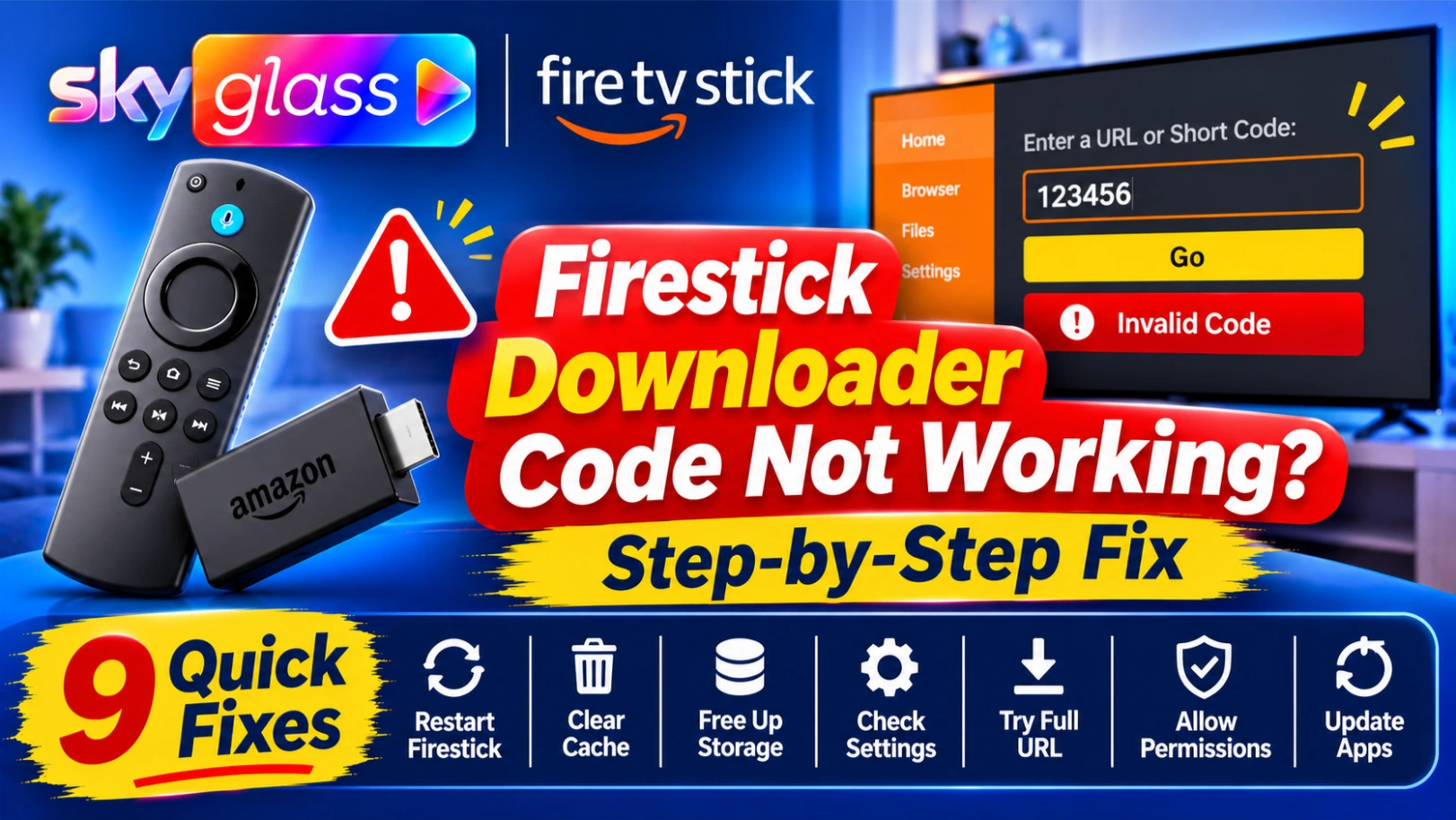
Firestick Downloader Code Not Working: Step-by-Step Fix
You open Downloader, type the code from the instructions, and nothing happens. Or it says “invalid code”, shows a blank page, or the download fails halfway. If your Downloader code is not working, the fix is usually simple: a typo, a blocked setting, a full Firestick or an outdated code.
Quick answer: re-enter the code slowly and check every digit, then try the full web link instead of the short code. Make sure Downloader has permission to access storage and is allowed to install unknown apps. Restart the Firestick, clear Downloader’s cache and free up storage. If the code is out of date, get a fresh code or direct link from the official APK page or from support.
This guide applies to every Fire TV Stick model, including the Firestick 4K, and to the Sky Glass IPTV app.
What Is a Downloader Code?
Downloader is a free app that lets you download files, such as an APK, onto a Firestick. A Downloader short code is a number that points to a web address, so you don’t have to type a long link with your remote. When you enter the code, Downloader looks up the address and opens it.
If the short code is wrong, out of date or can’t be reached, you get an error or a blank page. The full link or URL does the same job, which is why it’s a good backup.
Why Is My Downloader Code Not Working?
If you’re wondering why your Downloader code is not working, the usual causes are:
- A typing mistake in one of the digits
- The code has been changed or retired
- A weak or dropped internet connection
- Downloader doesn’t have storage permission
- Downloader can’t install apps because unknown sources are off
- Low storage space on the Firestick
- A cache or app glitch in Downloader
- The destination website or file is unavailable
- A VPN or network setting getting in the way
Work through the fixes in order.
Fix 1: Re-Enter the Code Carefully
Typing on a Firestick remote is slow, and one wrong digit gives a different result.
- Open Downloader and go to the Home screen.
- Click the URL box.
- Delete anything already there.
- Enter the code one digit at a time.
- Check every digit, then press Go.
Compare it against the code on the APK page and make sure you didn’t copy it from an old message.
Fix 2: Use the Full URL Instead of the Short Code
If the short code fails, type the full web link instead. This also helps with a Downloader URL that is not working.
- In Downloader, click the URL box.
- Enter the complete link from the official page, including
https://. - Press Go.
If you find typing difficult, use the Fire TV app on your phone as a keyboard.
Fix 3: Check Your Internet Connection
The code can’t load without a working connection.
- Open another app, such as a video app, to check the internet works.
- Restart the router: unplug it for 30 seconds, then plug it back in.
- Move closer to the router, or use an Ethernet adapter.
- Turn off any VPN while you download.
If your connection is weak, see our guide to slow Wi-Fi and router settings.
Fix 4: Give Downloader the Right Permissions
If Downloader opens the page but won’t download the file, check permissions.
- When Downloader asks to access photos, media and files, choose Allow.
- Go to Settings > My Fire TV > Developer options and make sure Install unknown apps is turned on for Downloader. On older Fire OS this is Apps from Unknown Sources. Menu names vary by version.
Without these, Downloader may open the link but fail to save or install the file.
Fix 5: Free Up Storage Space
A nearly full Firestick can’t save the download. This is a common reason for Downloader app not downloading APK files.
- Go to Settings > Applications > Manage Installed Applications.
- Uninstall apps you don’t use.
- Delete old installer files.
- Try the download again.
For more help, read our guide to Firestick lagging, cache and storage.
Fix 6: Clear Downloader’s Cache (and Data if Needed)
A faulty cache can cause the Downloader app to get stuck on a loading screen or show repeated errors.
- Go to Settings > Applications > Manage Installed Applications > Downloader.
- Select Clear cache and try again.
- If it still fails, select Clear data. This resets Downloader and its settings, so you’ll need to allow permissions again.
Fix 7: Restart the Firestick and Update Downloader
- Restart the Firestick: Settings > My Fire TV > Restart.
- Update Downloader from the Amazon Appstore if an update is available.
- Check for Fire OS updates under Settings > My Fire TV > About > Check for Updates.
Restarting clears many temporary faults.
Fix 8: Check for Browser and Website Settings
Some pages need the Downloader browser to behave in a certain way. If the page loads but the download button doesn’t respond:
- Open Downloader’s Settings and check whether JavaScript is enabled. Some websites only work with it on.
- Try scrolling and selecting the download link with the remote cursor.
- Try the direct file link if the official page provides one.
Fix 9: Get a Fresh Code or Link
If everything else fails, the code may be out of date.
Downloader Code Expired or Invalid: What It Means
A Downloader code that is invalid or expired usually means the short code was changed, removed or no longer points where it used to. Codes don’t normally wear out on a timer, but whoever manages the code can update it. Old codes saved in messages, notes or videos are often the culprit.
Get an up-to-date code or link from:
- The official Sky Glass IPTV APK page
- The installation guide
- Our support team
Alternative Ways to Install an APK on Firestick
If Downloader still won’t cooperate, you can try these:
- Send the file from your phone. Download the APK from the official page on an Android phone, then use a file-sending app to push it to your Firestick.
- Use cloud storage. Upload the APK to your own cloud storage, then open it on the Firestick with a file manager app.
- Use a USB drive. Copy the file to a USB drive and use a file manager on the Firestick, if your model supports a USB adapter.
- Try another browser app for downloading the file.
Always use the official file. Don’t install an APK shared in a chat group or from an unknown site. Once the file is on the Firestick, follow the Firestick installation steps. If it downloads but won’t install, see our guide on IPTV APK not installing.
Downloader Code Not Working on Firestick 4K
On a Firestick 4K or any other Fire TV Stick, the fixes are the same. The only differences are that:
- Menu names can differ by Fire OS version.
- Newer sticks have more power but still limited storage, so free space matters.
- Make sure you’ve allowed Downloader to install unknown apps, because this setting is easy to miss.
What to Do After You Download the App
When the file installs, open the app and log in with the details from your provider. If it won’t sign in, see our IPTV login failed guide. If channels won’t play, use the IPTV not working checklist.
Quick Troubleshooting Table
| Problem | Likely cause | Fix |
|---|---|---|
| “Invalid code” | Wrong digit or old code | Fixes 1, 9 |
| Blank page after entering code | Code outdated or site unreachable | Fixes 2, 9 |
| Downloader stuck on loading | Cache or connection | Fixes 3, 6 |
| Download fails at the end | Storage or permissions | Fixes 4, 5 |
| File downloads but won’t install | Unknown apps off | Fix 4 |
| Everything fails | Outdated app or Fire OS | Fix 7 |
Frequently Asked Questions
Why is my Downloader code not working?
Usually a typo, an outdated code, a weak connection, missing permissions or low storage.
How do I fix Downloader code not working on Firestick?
Re-enter the code, try the full URL, check your internet, allow permissions, free up storage, clear Downloader’s cache and restart.
Why does Downloader say invalid code?
The code was typed incorrectly or no longer points to a valid address. Get a fresh code from the official page.
What do I do if a Downloader code has expired?
Ask for an updated code or direct link on the APK page or from support.
Why is my Firestick Downloader app not downloading files?
Check storage, permissions, the internet connection and whether the destination file is still available.
How do I enter a Downloader code correctly?
Open the Downloader home screen, click the URL box, enter the digits one at a time and press Go.
Is there another way to install an app if the code doesn’t work?
Yes. Use the full link, send the file from your phone, use cloud storage or a USB drive. Use official files only.
Why is the Downloader app stuck on a loading screen?
A cache problem, weak internet or an outdated app. Clear the cache, restart and update.
Does the code work on Firestick 4K and older Fire TV Sticks?
Yes. The process is the same, though menu names vary by Fire OS version.
Is it safe to use Downloader?
Downloader is a legitimate tool, and it’s safe when you use it with official links only.
Still Not Working?
Contact our support team with your Firestick model, Fire OS version, the code or link you used and what you see on screen. A photo of the error helps. You can also request a free trial on WhatsApp to test the service on another device. For all setup options, see the installation guide, review the plans on the subscription page, or read the full Sky Glass IPTV UK guide.