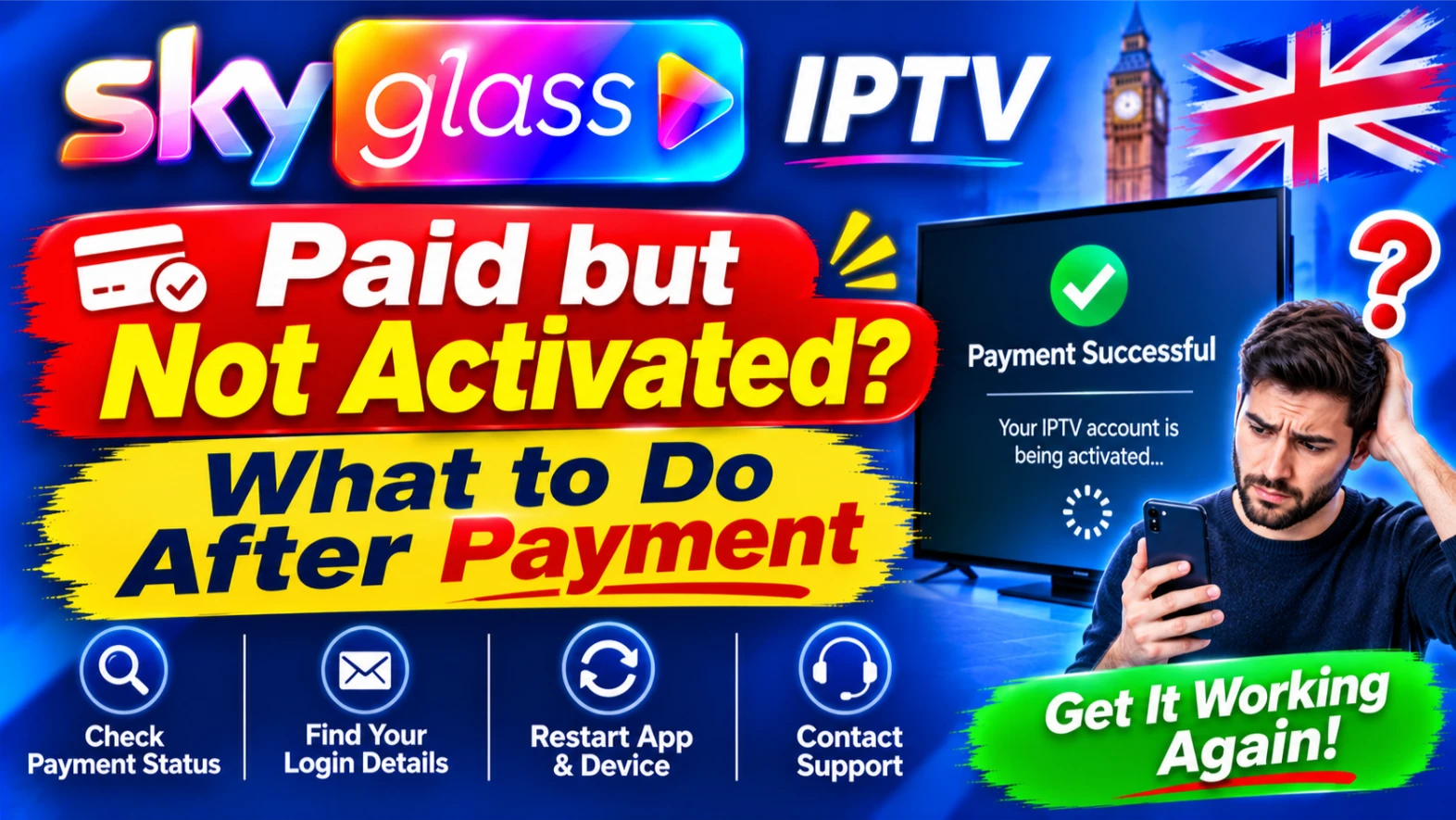
Paid but Not Activated? What to Do After Payment
You paid, the confirmation came through, and your IPTV still doesn’t work. If your IPTV is not activated after payment, stay calm. Most delays have simple causes, such as a missing email, a pending payment or details entered in the wrong place, and you can usually sort them out in a few minutes.
Quick answer: check your inbox and spam folder for your login details, then confirm that your payment shows as completed, not pending. Enter your username, password and server details exactly as sent, then restart the app. If nothing arrives or the login fails, contact support with your order number and payment confirmation. Don’t pay a second time.
This guide covers Sky Glass IPTV UK and applies to IPTV Smarters Pro and similar players on Firestick, Android and Smart TVs.
Why Is My IPTV Not Activated After Payment?
If you’re asking why your IPTV is not activated after payment, the usual reasons are:
- Your payment is still pending and hasn’t been confirmed yet
- Your login details went to spam, or to a different email address
- A typo in your email address at checkout
- A short processing delay while the account is created
- Details entered incorrectly in the app
- A wrong login method, such as an M3U link where Xtream Codes details are needed
- An old app login still saved on the device
- Activation needs a manual step with support
How Long Does IPTV Activation Take After Payment?
Activation time depends on the provider, the payment method and whether the order is processed automatically or checked by hand. In many cases accounts are set up quickly once payment is confirmed, but it isn’t instant every time. Bank transfers and some payment methods can take longer to clear than card payments.
If your confirmation message states an activation time, follow that. If it doesn’t, give it a short time, then contact support rather than waiting for days.
Step-by-Step: What to Do If You Paid but IPTV Isn’t Working
Step 1: Check Your Payment Status
Open your payment confirmation, receipt or bank statement. Make sure the payment shows as completed, not “pending” or “processing”. A pending payment hasn’t finished, so the order may not have been released yet.
Step 2: Look for Your Login Details
Your IPTV login credentials are normally sent after payment. Check:
- Your inbox and the spam or junk folder
- The email address you entered at checkout
- Any WhatsApp or chat message from support
- Your order confirmation page
If you can’t find anything, don’t pay again. Go to Step 5.
Step 3: Enter Your Details Exactly as Sent
Type your username, password and server details carefully.
- Watch for extra spaces, capital letters and look-alike characters such as O and 0.
- Enter the server address exactly as given, including
http://orhttps://. - Pick the right login method for your app. Some use Xtream Codes details and others use an M3U playlist URL.
If you see an error after entering the details, see our IPTV login failed guide.
Step 4: Restart the App and Your Device
Close the app completely, restart your device and router, then open the app and test a channel. Clear the cache if the app seems stuck. On Firestick: Settings > Applications > Manage Installed Applications > your app > Clear cache.
Step 5: Contact Support With Your Order Details
Contact our support team and include:
- Your order number or payment reference
- A screenshot of the payment confirmation
- The email address or name used at checkout
- The plan you bought
- Your device and app
- The exact error message, if there is one
Don’t post your password or full payment details publicly. Share them only through official channels.
IPTV Payment Successful but Not Activated: Common Cases
Payment Pending or Failed
If your payment is pending, wait until it clears. If it failed but you were charged, contact support and your payment provider.
Login Details Never Arrived
Check spam first. If they’re not there, confirm the email address on your order. Support can resend your details to the right place.
Account Created but Login Fails
The account may exist, but the details or server URL are being entered incorrectly, or the wrong login method is selected. Compare each character against your confirmation message.
Account Shows as Expired or Inactive
Occasionally an order is placed, but the plan hasn’t been applied. Support can check the status. If your plan has ended instead, see our guide on IPTV subscription expired and how to renew.
How to Check Whether Your IPTV Subscription Is Activated
- Try your login in the app and see if channels load.
- Look at your account or settings screen. Some apps using Xtream Codes show account status and expiry, but this varies by app and version.
- Ask support to confirm your subscription status.
If the app opens but nothing plays, the account might be active and the problem could be your connection. Use the IPTV not working checklist.
How to Activate an IPTV App
People also search for how to activate an IPTV app. There are two different things to keep apart:
- Subscription activation: your provider activates your account and gives you login details.
- App setup: you install a player and enter those details.
Most players such as IPTV Smarters Pro don’t need a separate activation code. You install the app and sign in. A few Smart TV players, however, use a separate activation or licence that has nothing to do with your IPTV subscription.
How to Set Up and Activate Your IPTV App for the First Time
- Install a compatible player. For Android and Firestick, use the Sky Glass IPTV APK and the installation guide.
- Open the app and choose your login method.
- Enter your credentials: username, password and server URL, or your M3U link.
- Wait for the channel list and guide to load.
- Test a few channels.
Where Can I Find My IPTV Activation Code?
Many IPTV apps don’t use an activation code at all. If your app asks for one, it may be a player licence for that specific app, which comes from the app’s developer rather than from your IPTV provider. Check the app’s website or your purchase receipt for that app. If you aren’t sure whether your plan needs a code, ask support.
Do I Need a Subscription to Activate an IPTV App?
You can install most players without a subscription, but they won’t show channels until you add valid login details from a provider. A player alone is only the software, and the subscription provides the content access.
How to Activate IPTV on a New Device
- Install the app on the new device.
- Enter your username, password and server details, or your M3U link.
- Make sure you haven’t gone over your plan’s connection limit. If you have, see IPTV too many connections.
How to Activate IPTV on a Smart TV
For IPTV activation on a Smart TV, the steps depend on your TV and app.
- Check whether a compatible player is available in your TV’s app store. Availability depends on the model, brand and year, including Samsung and LG.
- Install the player from the app store, or use an external device such as a Firestick if your TV can’t run one. See the Smart TV installation steps.
- Enter your login details with the TV remote. Take your time, because typing on a TV is easy to get wrong.
- Check for a MAC address or device key. Some Smart TV players link to your TV through its MAC address or a device ID, and may use an activation portal on the app’s website. This is separate from your IPTV subscription.
- Test a channel.
Why Is My IPTV App Not Activating on My Smart TV?
Common reasons are:
- The app isn’t supported on your TV model
- A wrong login method or server URL
- A separate app licence that isn’t activated
- A weak network connection
- A software update is needed on the TV
If the TV can’t run the app, an external streaming device is usually the simplest fix. If you want to test first, you can request a free trial on WhatsApp and try the service on another device.
What If Support Doesn’t Reply or the Provider Won’t Activate My Account?
- Check you used the official contact details on the website.
- Send your order number and proof of payment in one clear message.
- Allow reasonable time for a reply, then follow up once.
- Review the terms and conditions and the refund policy.
- If the problem still isn’t solved, you can speak to your payment provider about the payment.
Don’t pay again or send money to anyone who contacts you through social media offering to “fix” activation. Always work through the official website and support.
Quick Troubleshooting Table
| Situation | Likely cause | What to do |
|---|---|---|
| Paid, no email | Spam folder or wrong email | Check spam, contact support |
| Payment pending | Not yet cleared | Wait, check with payment provider |
| Login fails after entering details | Typo or wrong method | Re-enter, check server URL |
| App asks for an activation code | Separate app licence | Check the app’s own website |
| Smart TV won’t run the app | Unsupported model | Use a Firestick or box |
| Account inactive | Order not applied | Send order details to support |
Frequently Asked Questions
Why is my IPTV not activated after payment?
Most often the payment is still pending, your details went to spam, or the login was entered incorrectly.
How long does IPTV activation take after payment?
It varies by provider and payment method. Contact support if you haven’t heard back after a short wait.
Why haven’t I received my IPTV login details?
Check spam, the email address on your order and any support messages. Support can resend them.
What should I do if I paid but the service isn’t working?
Check your payment status, re-enter your details carefully, restart the app and contact support with your order number.
How do I activate my IPTV subscription after payment?
You normally don’t need to do anything except enter the login details you receive in your IPTV app.
How can I check if my IPTV subscription is active?
Log in and test channels, check the account screen if your app shows it, or ask support.
Where do I find my IPTV activation code?
Many apps don’t use one. If yours does, it is often a player licence from the app’s developer. Ask support if you’re unsure.
How do I activate IPTV on my Samsung or LG Smart TV?
Install a compatible player from the TV’s store, enter your login details and, if the app requires it, complete its own activation. If the TV can’t run it, use a Firestick.
Do I need a subscription to activate an IPTV app?
You can install the app without one, but you need valid login details from a provider to see channels.
Should I pay again if my account isn’t activated?
No. Contact support first with your order details.
Still Not Activated?
Gather your order number and payment proof, then contact our support team. For setup help, see the installation guide, review the plans on the subscription page, or read the full Sky Glass IPTV UK guide.