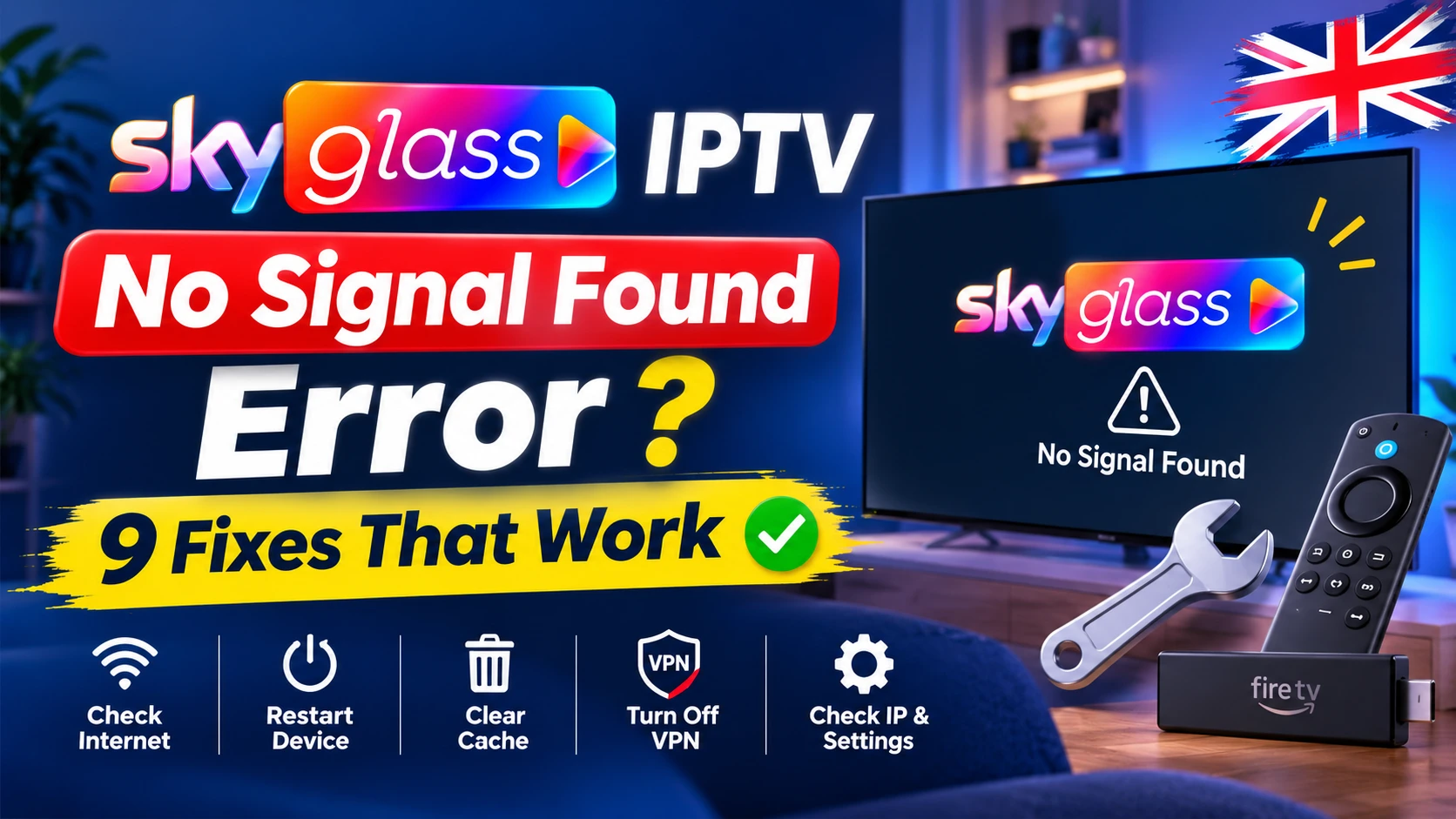
Sky Glass IPTV “No Signal Found” Error: 9 Fixes That Work
Seeing a Sky Glass IPTV “No Signal Found” message? A “No Signal Found” message can refer to different problems depending on where it appears. A television may have no HDMI input signal, while an app may be unable to load a channel or reach its source. Start by identifying whether the message comes from the TV itself or from inside the Sky Glass IPTV player.
Quick answer: Check the TV input and HDMI connection first if the message appears before the app opens. If the app opens but reports no signal or no stream, test other channels, confirm the internet works, restart the app and check account details.
1. Confirm where the message appears
If the television displays “No Signal” before the app appears, select the correct HDMI input and check that the Firestick or TV box is powered on.
If the message appears inside the app after you select a channel, the television input is probably working. Continue with the network, app and account checks below.
2. Check the HDMI connection and power
Make sure the streaming device is fully connected to the HDMI port and receiving power. Try another HDMI port if available and select that input on the TV.
Use the device's recommended power adapter. A weak or unstable power supply can cause the streaming device to disconnect or restart.
3. Test more than one channel
If only one channel fails while others play, the issue may be limited to that source. Note the channel name and report it to support rather than repeatedly resetting the whole device.
If every channel fails, investigate the connection, account and app before concluding that the source is unavailable.
4. Check the internet connection
Open another app or website on the same device. If it also fails, restart the router and streaming device. Test a second network, such as a mobile hotspot, only if your data plan and network conditions allow it.
If the service works on another network, the issue may involve local Wi-Fi, DNS or routing.
5. Review VPN and network settings
If a VPN is active, test the connection without it only where permitted and safe. Some networks route traffic differently, which can affect access to a service endpoint.
Do not attempt to bypass network restrictions or security controls. If the result changes between networks, tell support which connection works and which does not.
6. Confirm login and subscription status
Check that the username, password and server address match the latest details supplied. Look for accidental spaces and choose the correct login type.
Confirm that the plan is active and that the simultaneous-connection allowance has not been reached. Use the Sky Glass IPTV guides for login errors and too many connections if those messages appear.
7. Restart and clear app cache
Close the app fully and restart the device. If the issue remains, clear the app cache through the device settings. Avoid clearing data until you have the current login details available.
Check for an app update from the official source. Reinstall only if the app appears damaged and you can safely sign in again.
8. Check the device software
Install available system updates and verify the device date and time. Menu locations differ between Fire TV, Android TV and other platforms.
If the app is crashing as well as showing a signal error, use the Sky Glass IPTV app-crashing guide to troubleshoot the installation and device resources.
9. Ask support to investigate the source
If the same channel or all channels remain unavailable after these checks, provide support with the channel name, device model, app version, approximate time and the exact message.
Do not send your password or publish account details. A support team may need to verify the account or check whether a source is temporarily unavailable.
Frequently Asked Questions
Does No Signal Found always mean the TV has no HDMI signal?
No. It may be a TV input message or an in-app playback message. Identify where it appears before troubleshooting.
Why does one channel show no signal while others work?
The problem may be limited to that channel's source. Report its name and test again later.
Can Wi-Fi cause a no-signal message?
Yes. A weak or interrupted connection can prevent a stream from loading.
Should I reinstall the app straight away?
No. Check the input, connection, account and cache first. Reinstall only if simpler steps do not help.
What information should I send support?
Provide the device and app version, the affected channel or all-channel status, the time of the problem and the exact message.
Need more help?
If the message continues, contact Sky Glass IPTV support with the checks you completed and whether the error appears on the TV input screen or inside the app.