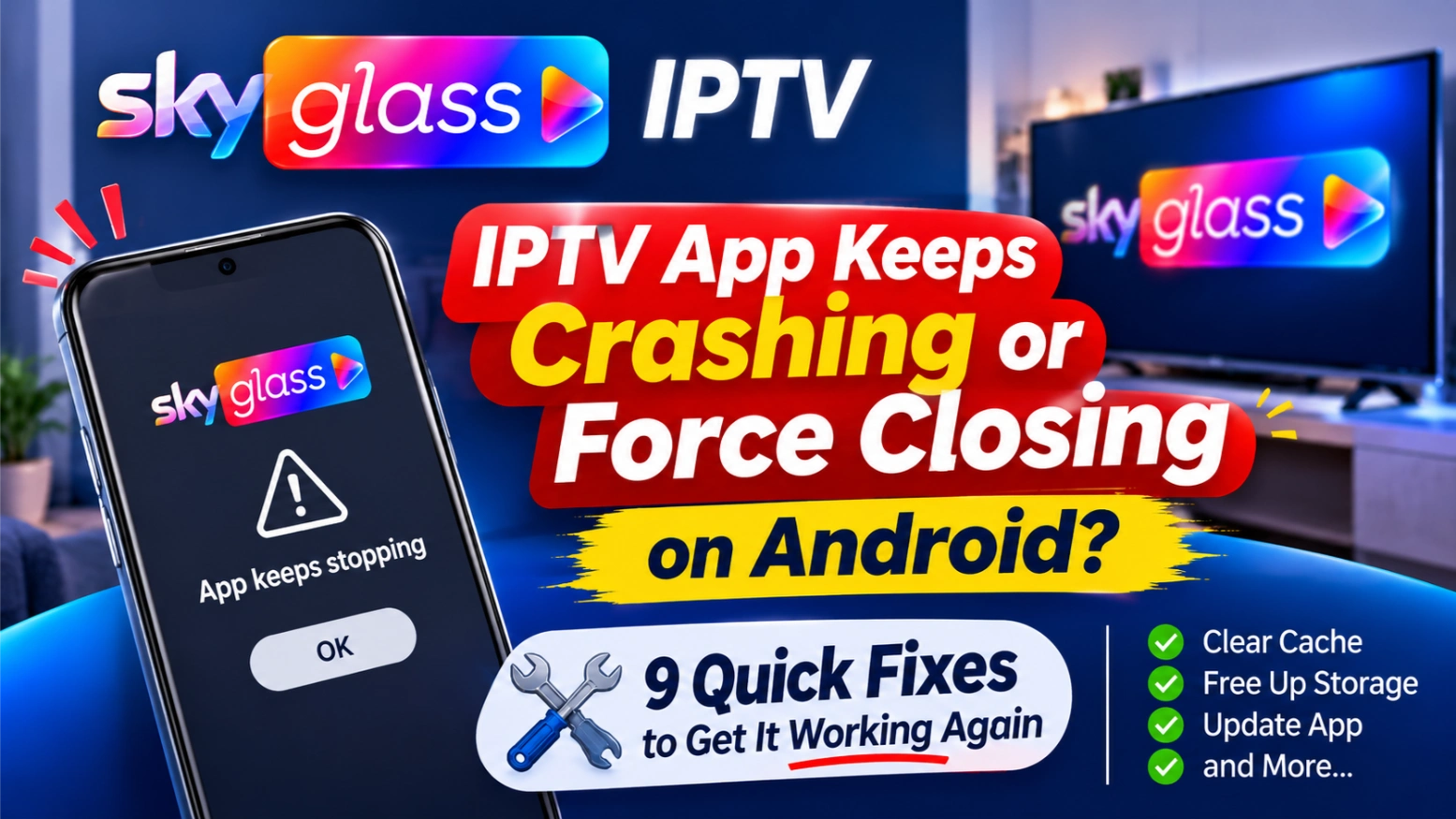
IPTV App Crashing or Force Closing on Android
IPTV app crashing on your Android device? An app that closes as soon as it opens needs a different fix from one that crashes only when a channel starts. The point at which the problem occurs is a useful clue. Use the following Sky Glass IPTV checks in order, starting with steps that do not remove your saved settings.
Quick answer: Restart the device, force stop the app, clear its cache and make sure storage is available. If it still crashes, update the app and device software. Reinstall only after keeping your login details safe. If the crash happens during channel playback, check the player or decoder settings as well.
Identify when the crash happens
At launch: a damaged cache, incomplete installation or device resource problem may be involved.
After login: saved account data, a large playlist or limited memory may be contributing.
When a channel opens: the decoder, video format or external player may be incompatible with the device.
During playback: overheating, low memory, unstable internet or power issues may cause the app to close.
After an update: the new app version or device software may not be working correctly together.
Work through the fixes from simplest to strongest
First, close the app and restart the phone, TV box or Firestick. This clears temporary device problems without deleting your account.
Next, force stop the app and clear its cache. On Android, open Settings, Apps, select the player and choose Force stop, then Storage and Clear cache. On Firestick, use Settings, Applications and Manage Installed Applications.
Free storage by removing unused apps and old downloads. Devices with very little free space may struggle to load large channel lists or temporary playback files.
Check for updates to the app and operating system. On Android devices, also check whether Android System WebView has an update if the app relies on it.
If the crash continues, clearing app data may reset a corrupted saved profile. This can sign you out, so have your username, password and server details available first.
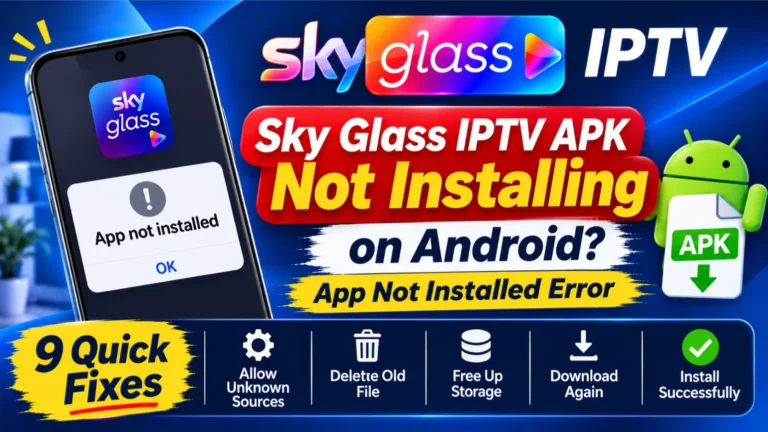
As a later step, uninstall and reinstall a verified copy from the official Sky Glass IPTV download page. If the APK itself will not install, use the separate APK troubleshooting guide. A factory reset should be a last resort, not an early fix.
If the app crashes after login
Remove an obsolete saved profile only if you have the correct current login details. Re-enter the username, password and server address carefully.
A very large playlist can take time and memory to load. Allow the initial refresh to complete and close other apps that are running in the background. If the same profile crashes repeatedly, contact support with your device and app version.
If it crashes when a channel starts
If the player offers hardware and software decoding, test the alternative setting and compare the result. Change one setting at a time so you can identify which adjustment helped.
If supported by the app, try another external player such as VLC or MX Player. Not every player supports every stream type, so return to the default if playback becomes worse.
Wait for each channel to load before switching again, and close other applications to free memory.
If it crashes during a programme
Check whether the device is hot or poorly ventilated. Give it time to cool, keep vents clear and use the correct power adapter.
Test the network with another app. If the connection is weak, move closer to the router or use Ethernet where supported. See the Sky Glass IPTV Wi-Fi troubleshooting guide for network checks.
Device-specific considerations
Android phones and tablets may have different menu names depending on the manufacturer and Android version. Android TV boxes often have limited storage and memory.
Firestick users should use the supplied power adapter where possible and check free storage before reinstalling. Samsung and LG televisions do not run Android TV, so their app menus and error messages are different. An external compatible streaming device may be an alternative if the television does not support the required app.
Frequently Asked Questions
Why does my IPTV app keep closing?
Common causes include low storage, a damaged cache, outdated software, overheating or a player setting that does not suit the device.
Does clearing cache remove my login?
Clearing cache normally removes temporary files rather than saved account data. Clearing app data is different and may sign you out.
Why does the app crash when I change channels?
The decoder, stream format or device memory may be involved. Try an available alternative player setting and avoid rapid channel switching.
Will reinstalling remove my subscription?
The service account is separate from the app installation, but you will need your login details to sign in again.
Should I factory reset my Firestick?
Only consider a factory reset after less disruptive checks have failed and you have backed up anything important.
Need more help?
If the app continues to crash, tell Sky Glass IPTV support exactly when it closes, your device model, operating-system version and app version. A screenshot or short recording of the error can help.