Sky Glass IPTV Installation Guide – Firestick, Android and More
Use this Sky Glass IPTV Installation Guide to understand the preparation and setup process for a compatible device. You will need a supported player, a reliable internet connection and the account or playlist details issued for your service. The available installation method depends on your device, its operating system and the player you choose.
Before you start
- Check that your device model and operating-system version support the player you plan to use.
- Have the correct username, password, server address, playlist URL or other required activation details ready.
- Check your broadband connection and Wi-Fi signal in the room where you intend to watch.
- Make sure the device has enough free storage for the app and any updates.
- Use an official app store or a download source that has been verified. Review permission requests and security warnings.
Choose your device
Select the section that matches your hardware. Instructions can differ between manufacturers and software versions, so treat the steps as a guide rather than assuming that every device has identical menus.
Sky Glass IPTV Installation setup on Firestick and Fire TV
For a compatible Fire TV model, first check whether the required player is available through the Amazon Appstore or whether we have provided a verified alternative installation route. The Sky Glass IPTV app can be installed with the Downloader app using code 5293334; check that the code opens the expected file before installing.
Important: Fire TV models and operating systems are not all alike. Newer devices running Vega OS may not support the Android APK method. Confirm the operating system and supported installation route for your exact model.
This is a download route only; it is not a subscription or activation credential.
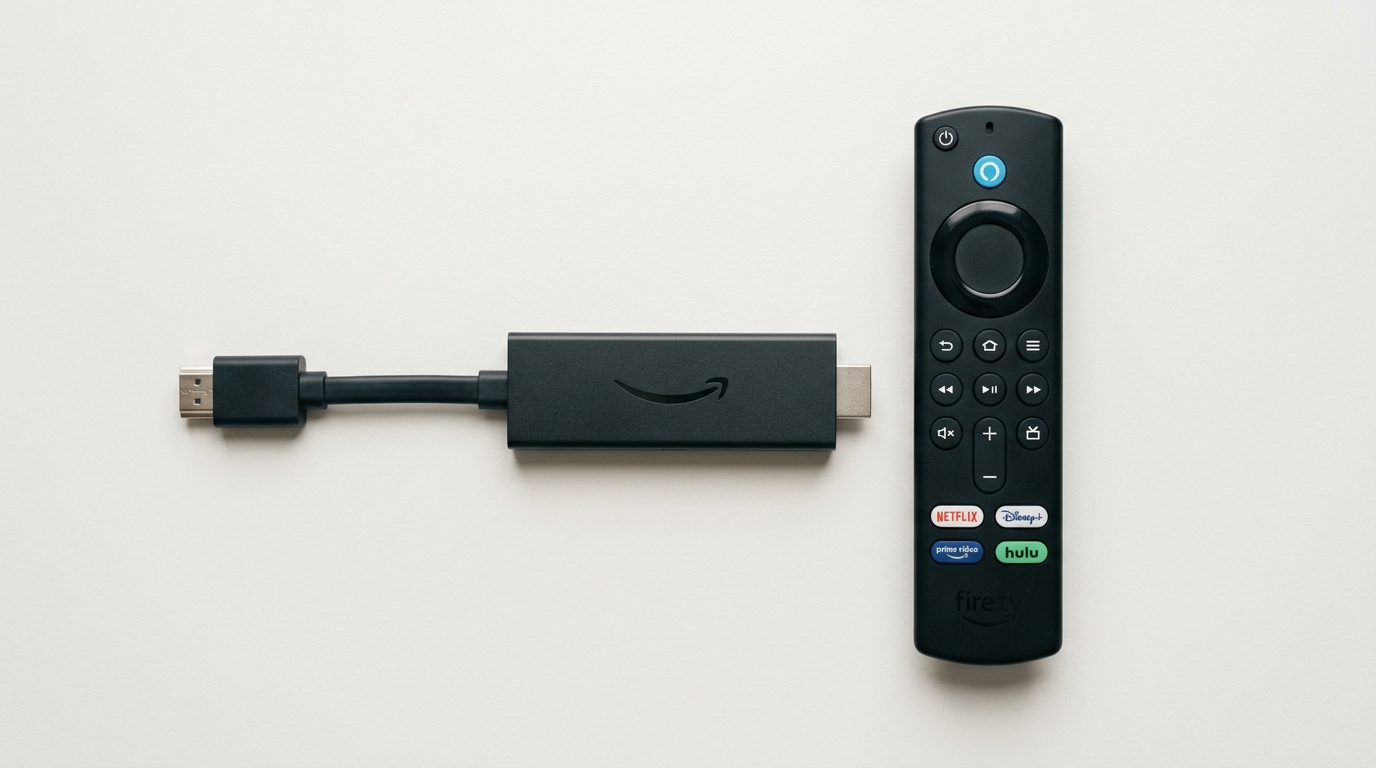
Firestick setup: step by step
Connect your network and storage
Connect the Fire TV device to your home network and check that sufficient storage is available.
Install Downloader and get the app
Open the Amazon Appstore and install Downloader if it is supported on your model. Then open Downloader and enter the verified APK address or confirmed code, and check the destination before downloading.
Install and open the player
Install the player only after confirming that the file is genuine and compatible with the device. Launch it and select the login or playlist method supplied for your subscription.
Enter your account details
Enter the correct details supplied for your subscription and wait for the playlist and programme information to load.
Test playback
Once everything has loaded, test playback on a permitted stream.
Installation on Other Compatible Devices
Sky Glass IPTV Installation setup on Android devices
On an Android phone, tablet, Android TV or TV box, begin by checking whether the required player is available through Google Play or another verified source. If we supply an APK route, verify the file, publisher and compatibility before installation. Do not assume that every Android device uses the same menu or supports the same app.
- Check the Android version and available storage on your device.
- Search the official app store for the player recommended for your account, or use a verified APK route if one is currently supplied.
- Review the app identity and requested permissions before installing.
- Open the player and choose the correct account, playlist or activation method.
- Enter the details supplied for your subscription and wait for the content information to load.
- Test a permitted stream and contact support if the player rejects the supplied details.
Search the official app store for the player recommended for your account, or use a verified APK route if one is currently supplied.
Set up IPTV on a compatible Smart TV
For Samsung, LG and other Smart TVs, open the television’s own app store and search for a player that is supported by the model and region. IBO Player, CR7 Player and Hot IPTV are examples, but availability and compatibility must be checked on the actual television.
Some players display a MAC address or device key during setup. If your account uses device-based playlist assignment, follow our verified instructions and share only the information required. Do not send passwords or unrelated personal details.
- Open the television app store.
- Find a compatible player and check its publisher and availability.
- Install and open the player.
- Follow the app’s supported playlist or device-activation process.
- Test the configuration once the playlist has loaded.
Search for the player in your TV’s app store and install it if it is available for your model.
Use IPTV on a phone, tablet or computer
On Apple devices, install a compatible player through the App Store and use the account or playlist method supported by that app. On Android, use Google Play or a verified Android installation route. On Windows or macOS, choose software compatible with the operating system and the playlist format supplied for your account.
Never try to install an Android APK on a platform that does not support APK packages. Player availability can change by region, operating-system release and device model.
Use a compatible app from the App Store, Google Play, Windows or macOS.
Understand the common login methods
Xtream Codes-style login commonly uses a username, password and server URL. M3U setup uses a playlist address. Some specialised devices or players use a portal URL or device identifier. The correct method depends on your player and service. Never share your credentials publicly or paste them into a support message that does not come from a verified contact channel.
M3U playlist
An M3U setup uses a playlist address supplied for the account. Open the playlist option in the player and enter the complete URL exactly as provided. Treat the URL as private account information.
Xtream Codes-style login
This method commonly asks for a username, password and server URL. Enter each value carefully and check for typing errors or extra spaces.
Portal URL or device identifier
Some specialist players use a portal address or a device identifier rather than a conventional username and password. Follow the instructions for the particular player and service. Never assume that one login method works in every application.
Security recommendations
- ✔ Download apps only from official stores or verified sources
- ✔ Check the app name, publisher and requested permissions
- ✔ Keep the device operating system and player updated
- ✔ Do not install files sent by unknown people or posted on untrusted sites
- ✔ Investigate unexpected security warnings before proceeding
- ✔ Keep account credentials and private playlist links confidential
Troubleshooting common setup problems
Here are solutions to common issues you may encounter.
The application will not install
Check the operating-system version, device compatibility, free storage and integrity of the downloaded file. Restart the device and try again only after confirming that the source is genuine. If a security warning appears, do not bypass it without understanding why it was shown. For error-by-error fixes, see Sky Glass IPTV APK not installing.
The player rejects the login details
Check the spelling of the username and password, the server address, any spaces and the subscription status. Make sure you selected the correct login method. If the issue remains, contact support using a verified channel. Never post your password in a public forum. Our login failed guide covers each error message.
Playback buffers or stops
Check whether other legitimate video services work on the same network. Restart the router and viewing device, improve the Wi-Fi signal or try Ethernet if available. Pause other large downloads while testing. Problems may also originate with the stream source or provider maintenance. See Sky Glass IPTV buffering fixes for more checks.
The programme guide is blank
Some players need time to retrieve EPG data. Check the playlist configuration and the player’s guide settings. If programme information is not supplied for a channel, its guide entry may remain empty.
The playlist loads but no channels appear
Confirm that the subscription is active, the playlist or account details are correct and the player supports the supplied format. If the same details work on another supported device, investigate the original device or player configuration. Work through the Sky Glass IPTV not working checklist if it continues.
Final setup checklist
Before finishing, confirm that the device is compatible, the player came from a verified source, the correct account method was selected and the playlist has loaded. Test playback and keep a note of the player name and any error message if you need support. For a full start-to-finish walkthrough, read the Sky Glass IPTV UK setup guide.
Frequently asked questions
What do I need to install IPTV?
You need a compatible device, a supported player application, a stable internet connection and valid account or playlist details for the service.
How do I install IPTV on Firestick?
Use a player supported by your Fire TV model. Install it from an approved source or follow a verified alternative route, then enter the account details supplied for your subscription.
Are the steps identical on every Smart TV?
No. App stores, supported players and menu names vary by manufacturer, model, region and operating-system version.
What is the difference between M3U and Xtream Codes login?
M3U uses a playlist URL. Xtream Codes-style login normally uses a username, password and server URL. Select the method supported by your player and account.
What internet speed is required?
Requirements depend on resolution, stream bitrate and the number of devices sharing your connection. Stability and Wi-Fi quality matter as well as the advertised speed.
Why does the player show an empty channel list?
Check the subscription status, login details, playlist format and player compatibility. Allow time for the data to load.
What causes buffering?
Common causes include weak Wi-Fi, network congestion, device limitations or a problem with the stream source. Test the connection and contact support if it continues.
Is Downloader code 5293334 guaranteed to work?
No. Check that it opens the expected download before installing, and contact support if it stops working.
Need help with your device?
If the steps above do not resolve the issue, contact the team through a verified support channel. Include your device model, player name and a short description of the problem, but do not send your password.