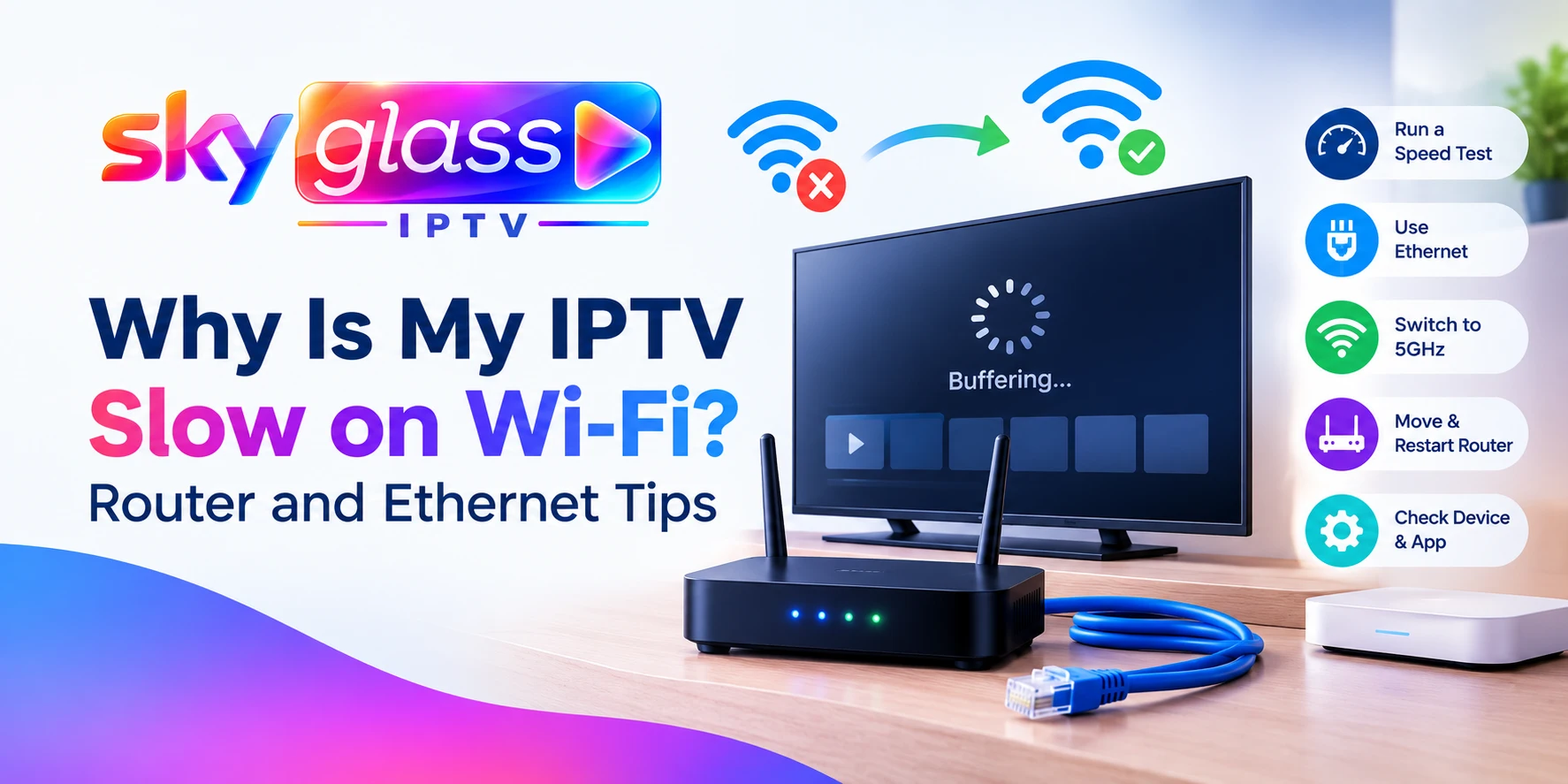
Why Is My IPTV Slow on Wi-Fi? Router and Ethernet Tips
IPTV slow on Wi-Fi? A speed test beside the router can look excellent while the television struggles in another room. That is because the connection quality at the streaming device matters more than a single headline speed figure. Walls, interference, distance and other devices can all affect playback. This Sky Glass IPTV guide helps you test the network where you watch.
Quick answer: Run a speed test near the streaming device, restart the router, reduce competing downloads and improve the signal. Try 5 GHz at shorter range or Ethernet where supported. If the problem occurs only in one app or on one channel, check that app or source separately.
Test at the place you watch
Use a phone or laptop in the same room as the TV to check the Wi-Fi signal and run a speed test. Compare the result with a test beside the router. A large difference suggests coverage or interference rather than a broadband-wide problem.
Repeat the test at the time playback usually slows. Evening congestion can affect household Wi-Fi even when the connection performs well earlier in the day.
1. Restart the router and streaming device
Restart the router using its normal power procedure, allow it to reconnect fully and then restart the Firestick or Android device. Avoid repeatedly interrupting a router while it is updating.
2. Reduce competing network use
Large downloads, cloud backups, game updates and multiple high-resolution streams can use available bandwidth. Pause non-essential transfers and test playback again.
If performance improves, schedule large downloads outside viewing hours or review the router's quality-of-service options if it offers them.
3. Improve router placement
Place the router in an open, central position rather than inside a cabinet or behind a television. Keep it away from large metal objects and other sources of interference where possible.
If the TV is several walls away, consider moving the router, adding a properly configured mesh access point or using Ethernet.
4. Choose the right Wi-Fi band
The 2.4 GHz band generally reaches farther and can pass through obstacles more effectively, but it is often more crowded. The 5 GHz band can offer higher local capacity but usually has shorter range.
Test both bands if your router and device support them. Choose the one that provides a stable connection at the television, not simply the one with the higher theoretical speed.
5. Try Ethernet
A wired Ethernet connection can reduce wireless interference and provide more consistent performance. Some streaming devices need a compatible Ethernet adapter. Check the device's supported accessories before buying one.
If running a cable is impractical, a mesh system or powerline adapter may help in some homes, but results depend on building layout and electrical wiring.
6. Review router firmware and settings
Check for router firmware updates through the manufacturer's official administration interface. Use a strong Wi-Fi password and modern security settings supported by your devices.
Avoid changing advanced DNS, firewall or channel settings at random. Record the original settings and change one item at a time so you can reverse an adjustment that makes things worse.
7. Check interference and congestion
Nearby routers, wireless cameras, Bluetooth devices and household electronics can contribute to interference. If your router allows channel selection, use its automatic analysis or manufacturer's advice rather than guessing.
If the slowdown happens at the same time each day, compare the number of devices using the network and repeat the test outside peak hours.
8. Check the streaming device
A Firestick with little free storage or a damaged app cache can feel like a network problem. Restart the device, clear the affected app's cache and remove unused apps if its menus are slow too.
9. Separate network issues from service issues
If other apps stream normally but one channel does not, the issue may not be your Wi-Fi. Test more than one channel and provide support with the time, device and affected content.
Frequently Asked Questions
What internet speed do I need for IPTV?
The requirement depends on stream quality, codec, device and household usage. A stable connection with enough spare capacity is more useful than relying on one speed-test result.
Is 5 GHz always better than 2.4 GHz?
No. 5 GHz may perform better nearby, while 2.4 GHz can reach farther. Test both where possible.
Will Ethernet stop all buffering?
Ethernet can remove Wi-Fi interference, but it cannot fix an unavailable source, account problem or wider internet outage.
Why is Wi-Fi slower in the evening?
More household and neighbourhood network activity may create congestion. Compare tests at different times.
Should I change DNS settings?
Only if you understand the change or have guidance from your network provider. Random DNS changes can create new problems.
Need more help?
If playback remains slow, tell Sky Glass IPTV support whether other apps work, whether Ethernet or another network changes the result and which device is affected.