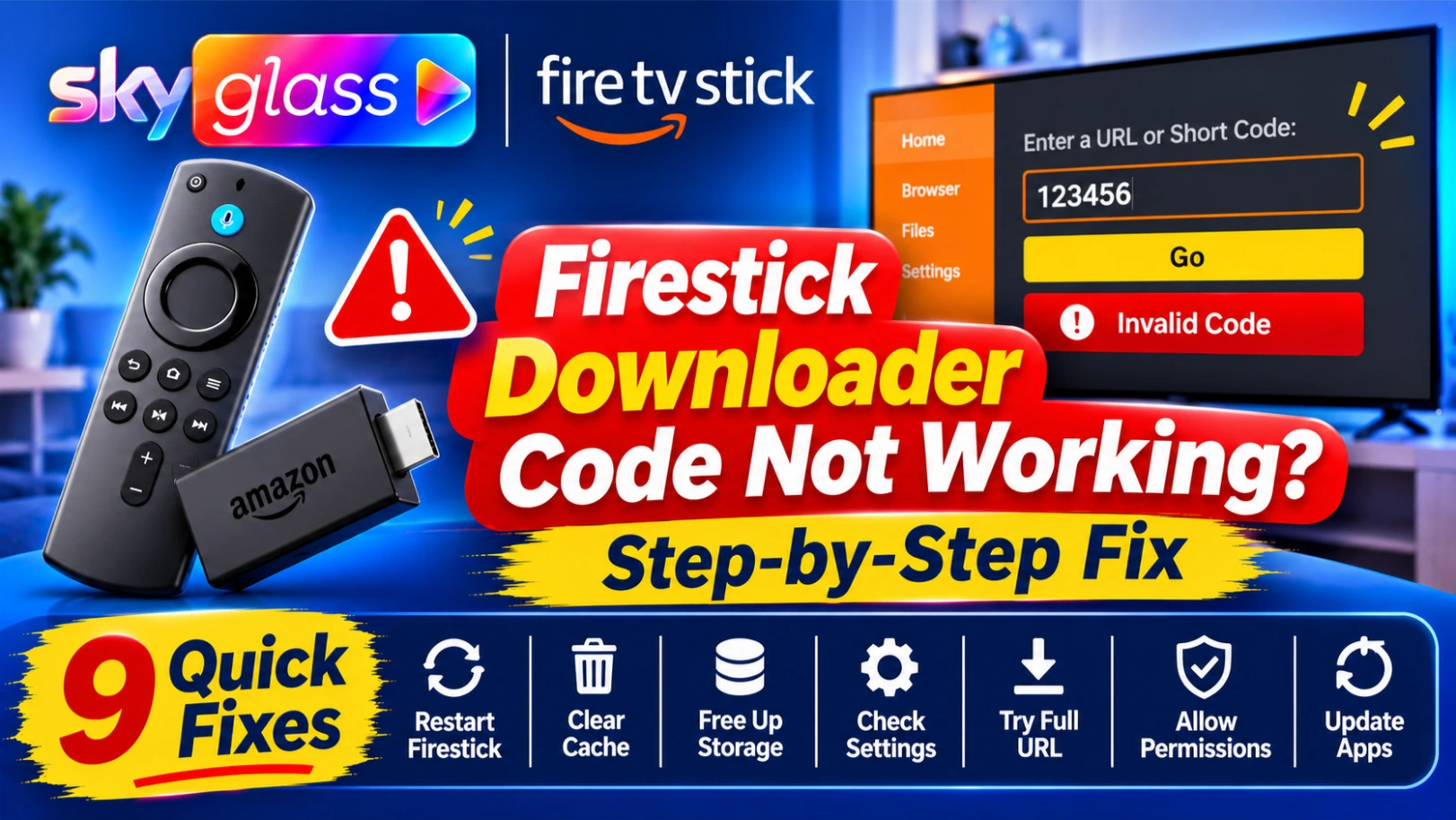
Firestick Downloader Code Not Working: Step-by-Step Fix
Firestick Downloader code not working? A Downloader code should take you straight to the page or file you need. When it returns an invalid-code message, opens a blank screen or stops before the download finishes, the failure can be happening at several different points. Working out where it stops is much quicker than repeating the same steps. This Sky Glass IPTV guide explains how to check the code, the webpage, the download and the installation separately.
Quick answer: Start by checking every digit and trying the full web address supplied through the official Sky Glass IPTV website or support channel. If the address opens, the short code may be outdated. If neither works, check the Firestick connection, Downloader permissions and available storage before trying again.
Understand what a Downloader code does
Downloader is an app for Fire TV devices that opens web addresses and downloads files. A short numeric code is simply a shortcut to a longer address; it is not the app itself and it does not prove that a file is safe.
A failure can occur before the webpage opens, while the page is loading, during the file transfer or when Fire OS tries to install the downloaded APK. Identify the stage first.
1. Downloader says the code is invalid
Clear the entry field and type the code again slowly. Check digits that are easy to confuse and make sure no extra characters have been entered.
Codes can be replaced or removed by the person who manages the destination page. An old code may therefore stop working even if you copied it correctly. Use the current direct URL from the official Sky Glass IPTV download page or ask support to confirm the current details.
Do not rely on codes posted in unrelated videos, forums or chat groups. They may point to a different file or an unsafe download.
2. The code opens a blank page or an error
First, open another app on the Firestick to confirm that the internet connection works. Restart the router if other apps also struggle, then restart the Firestick.
Try opening the same address on a phone or computer. If it fails on every device, the page or server may be temporarily unavailable. If it works elsewhere, the issue is more likely to be local to the Firestick or Downloader.
Open Settings, then Applications, Manage Installed Applications and Downloader. Choose Clear cache, reopen Downloader and try again. If a VPN is active, temporarily disconnect it for a test, provided doing so is permitted by your network and service terms.
3. The page loads but the download will not finish
Check the Firestick's free storage. Remove apps you no longer use and delete old installer files before retrying. A nearly full device may start a download but fail to save the complete file.
When Downloader requests access to files or media, allow the permission. If permission was denied, review the app permissions in Fire OS settings. Some pages also rely on JavaScript, so check Downloader's settings if the page buttons do not respond.
Use a stable connection and avoid switching networks during the download. If a direct APK link is provided on the official page, use that rather than an unresponsive download button.
4. The APK downloads but will not install
Open Fire TV settings and find the option for installing unknown apps. On many versions this is under My Fire TV, Developer options and Install unknown apps. Allow Downloader to install apps if you have deliberately chosen to install this APK.
If Developer options is hidden, the route to reveal it varies by Fire OS version. On some devices, open Settings, My Fire TV, About, highlight the device name and press Select several times. Follow the instructions displayed by your device.
If Android or Fire OS reports that the app is not installed, the APK may be incomplete, incompatible or in conflict with an older installation. See the Sky Glass IPTV guide to APK installation errors before removing an existing app.
Other ways to transfer an installation file
If Downloader remains unreliable, use a trusted file-transfer method supported by your devices, such as transferring a file from your own Android phone or opening a file stored in your own cloud account. A compatible USB drive may also work on supported Fire TV hardware.
Only use the APK and link supplied through the official Sky Glass IPTV website or verified support. Avoid files sent by unknown people, shortened links with unclear destinations and unofficial download mirrors.
Before trying again
Restart the Firestick from Settings, My Fire TV and Restart. Check for Fire OS and Downloader updates, use the supplied wall power adapter where possible and leave enough free storage for the file and installation.
Menu names differ between Fire TV generations. If a setting is missing, check the instructions for your exact model rather than changing unrelated security settings.
Frequently Asked Questions
Why does Downloader say my code is invalid?
The code may have been mistyped, changed or removed. Re-enter it carefully and ask Sky Glass IPTV support for the current official link if it still fails.
Can I enter a web address instead of a code?
Yes. If Sky Glass IPTV supplies a direct address, enter the complete address in Downloader's URL field.
Why does the download stop halfway?
Common causes include low storage, unstable internet or missing file permissions. Free up space, check permissions and retry on a stable connection.
Why does the APK download but not install?
Downloader may not have permission to install apps, or the APK may be incomplete or incompatible with the device.
Is Downloader safe to use?
Downloader is a utility app. The safety of a downloaded file depends on its source, so use only verified official links and review permissions before installing.
Need more help?
If the problem remains, contact Sky Glass IPTV support with your Fire TV model, the stage where the process stops and the exact message on screen. Do not send passwords or payment-card details.