Sky Glass IPTV UK: APK Download, Login Details and Setup Guide
This Sky Glass IPTV UK guide brings together the main steps for getting started with Sky Glass IPTV: checking device compatibility, obtaining the correct app file where applicable, installing a player, entering account details and resolving common setup issues. Exact menus and supported features can vary by device and app version, so use the instructions that match your hardware.
Quick answer: Start by identifying your device and checking the current setup instructions on the official Sky Glass IPTV website. Obtain installation files only from verified official links, install the compatible app, then enter the login method and details supplied for your account. Test playback and contact support if an error remains.
What you need before setup
A compatible streaming device, a reliable internet connection and the correct app or player are the basic requirements. Some televisions have limited app support, so an external streaming device may be needed.
Keep your current account credentials and order confirmation available. Do not share your password or playlist link publicly.
Choose the correct device instructions
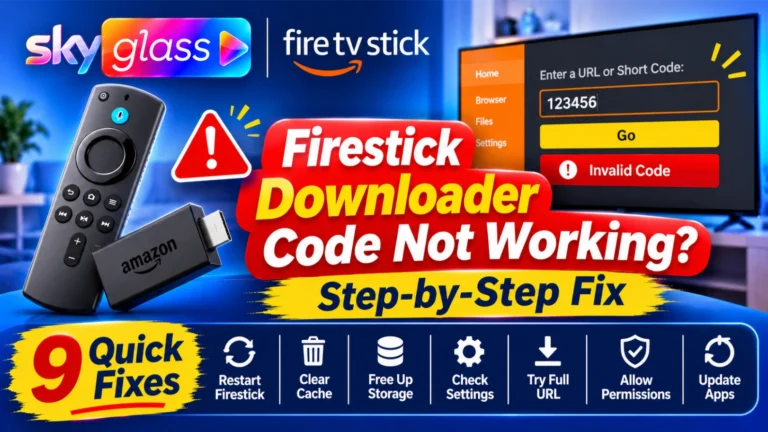
Fire TV Stick: use the Fire TV installation instructions and the Downloader method only when the official page provides a verified code or direct address.
Android phone or tablet: use the Android installation instructions and check the device's Android version and storage before opening an APK.
Android TV box: confirm that the app build is intended for Android TV and that the box has sufficient storage and memory.
Samsung and LG televisions: these use their own operating systems rather than Android TV. Check the current app availability for the exact model; an external compatible device may be an option if the required app is unavailable.
Download and install safely
Open the official Sky Glass IPTV download or installation page and follow the current instructions. Confirm that the file is intended for your device before downloading it.
On Android, installation from outside the Play Store may require permission for the browser or file manager used to open the APK. Grant it only when you trust the file source, and review security warnings carefully.
On Fire TV, the installation permission is managed through the device's app-install settings. Menu names can differ between Fire OS versions.
Avoid APK files forwarded by unknown contacts, unofficial mirrors or websites that imitate the brand. A file name or logo alone does not establish that a download is genuine.
Enter your login details
Open the player and select the login method that matches the details supplied with your account. A username, password and server address are used differently from an M3U playlist link.
Enter each field carefully, including the server address and any required port. Watch for extra spaces and similar-looking characters. If the login is rejected, use the Sky Glass IPTV login troubleshooting guide.
Check playback and device connections
Test more than one channel or content category. If one item fails, note its name and the time. If all playback fails, check the internet, app version and account status.
The number of simultaneous streams depends on the account plan. Close the app on devices that are no longer being used and review the connection-limit guide if a maximum-connections message appears.
Common setup problems
Downloader code not working: check the current official address, connection, permissions and storage.
APK not installing: check the file, device compatibility, storage and install permission.
App crashing: restart, clear cache, free storage and update the app.
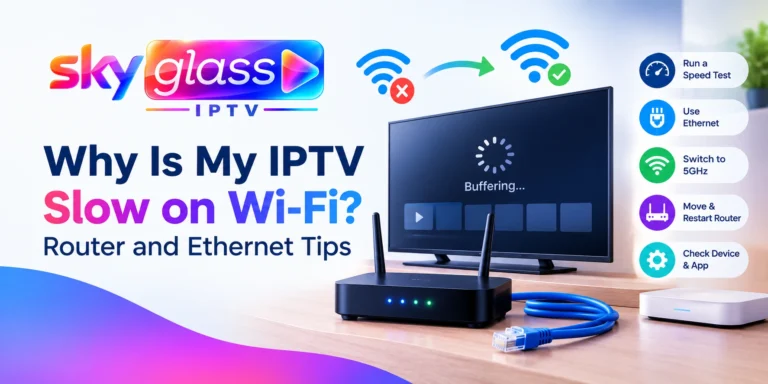
Buffering: test Wi-Fi near the TV, reduce network congestion and consider Ethernet.
Account expired or login failed: verify the credentials and plan status with support.
Account safety and support
Keep your account information private and use only verified support channels. Do not post passwords, full payment details or private playlist links in public groups.
When contacting support, include the device model, app version, exact error and steps already tried. This helps identify whether the issue relates to installation, login, playback or the network.
Important service and compatibility note
App availability, supported devices, package features, connection limits and account terms can change. Check the current information published by Sky Glass IPTV before ordering or installing. Do not assume that every player or television model supports every feature.
Frequently Asked Questions
How do I install Sky Glass IPTV on a Firestick?
Use the current Fire TV instructions on the official Sky Glass IPTV website and verify the download address before installing.
Can I install the app on an Android phone?
Use the Android instructions and confirm that your device and operating-system version are supported by the current app build.
Can I use the same login on multiple devices?
That depends on the simultaneous connections allowed by your plan and the provider's terms.
Why does the app open but show no channels?
Check the login method, credentials, server address, account status and internet connection.
Where can I get help with setup?
Contact Sky Glass IPTV through the support details published on its official website and include your device and error information.
Need more help?
Before installing or renewing, review the current Sky Glass IPTV website for up-to-date compatibility, plan terms and official support details. If you need help, send support your device model and the exact step where setup stops.