
Firestick Lagging or Slow? Clear Cache and Free Up Storage
Firestick lagging? A Firestick can become sluggish when storage is nearly full, apps accumulate temporary files or the device has been running for a long time. Slow menus, delayed remote response and buffering are not all the same problem. Use these checks to work out whether the issue is the device, a particular app or the network.
Quick answer: Restart the Firestick, check available storage and clear the cache of the app that is slow. Remove unused applications and use the supplied power adapter. If menus work normally but video buffers, test the Wi-Fi connection separately.
Identify what is slow
If the Home screen and every app respond slowly, look at device storage, power, heat and system updates.
If only the Sky Glass IPTV player is slow, check that app's cache, saved playlist and network connection before changing the whole Firestick.
If menus respond normally but streams pause, investigate Wi-Fi quality and router congestion. A device reset will not fix a weak wireless signal.
1. Restart the Firestick
Use Settings, My Fire TV and Restart where available. A proper restart can clear temporary problems that build up while the device remains on for long periods.
If the device is unresponsive, follow Amazon's guidance for your exact model rather than repeatedly removing power during an update.
2. Clear the cache of the affected app
Open Settings, Applications and Manage Installed Applications. Select the app, then choose Clear cache. This removes temporary files and is less disruptive than clearing all data.
Avoid choosing Clear data unless you understand that it may remove saved logins and settings. Keep your Sky Glass IPTV credentials safe before taking that step.
3. Free up internal storage
Uninstall applications you no longer use and remove old APK installers or downloads. Keep enough free space for app updates and temporary files.
Review large apps first. If storage remains low after removing unused content, check the device's storage screen for further guidance.
4. Check updates
Look for Fire OS updates in Settings, My Fire TV and About. Update apps through their trusted distribution source. Avoid installing system tools from unknown websites.
5. Check power and temperature
Use the power adapter supplied for the device or a manufacturer-approved equivalent. A television USB port may not provide consistent power for every Firestick model.
Keep the device ventilated and away from enclosed hot spaces. If it becomes unusually hot, allow it to cool before testing again.
6. Review the remote
Replace weak batteries and check that the remote is paired. Interference or a poor connection can make navigation feel slow even when the Firestick itself is operating normally.
Test the on-screen menus with another compatible control method if available. This helps separate a remote issue from a device-performance issue.
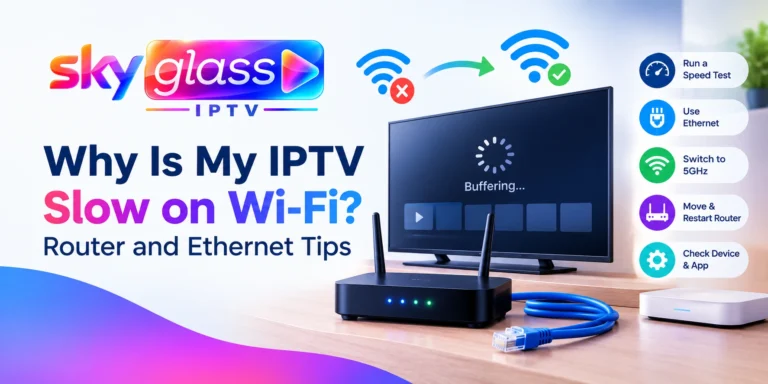
7. Check the Wi-Fi connection
If the menus are quick but playback is not, move the Firestick or router to improve signal quality. A 5 GHz network may help at shorter range, while 2.4 GHz can travel farther through walls.
Where supported, Ethernet can provide a more consistent connection. See the Sky Glass IPTV guide to Wi-Fi and router troubleshooting for more detailed tests.
8. Avoid unnecessary resets
A factory reset removes installed apps and settings. Use it only after restarting, clearing cache, freeing storage and checking updates have failed. Make sure you can reinstall apps and sign in again before proceeding.
Frequently Asked Questions
Why is my Firestick suddenly slow?
Low storage, accumulated cache, heat, power problems or a pending update can affect performance.
Does clearing cache delete my subscription?
Clearing cache normally removes temporary app files. It does not cancel a service account, although clearing app data may remove saved login details.
How often should I clear cache?
There is no universal schedule. Clear the cache when an app behaves unusually or its temporary files appear to be causing problems.
Will a faster internet package fix a slow Firestick menu?
Not usually. Menu performance is more closely related to device resources, storage and software. Internet speed matters more for online playback.
Should I unplug the Firestick every day?
A normal restart through the settings is preferable. Follow the manufacturer's guidance for power and updates.
Need more help?
If your Firestick remains slow, tell Sky Glass IPTV support whether the Home screen, app menus or video playback is affected, along with your Firestick model and available storage.