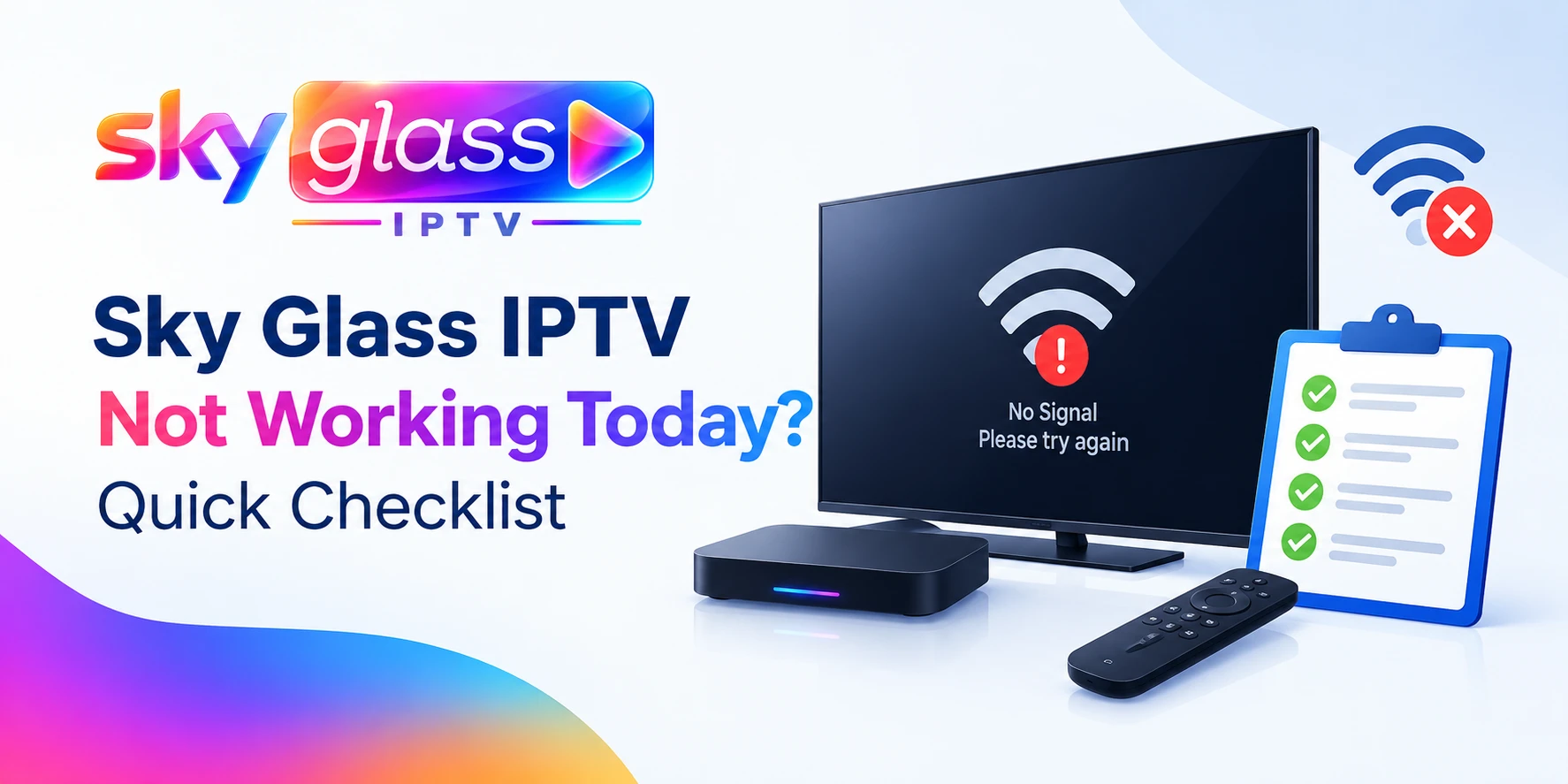
Sky Glass IPTV Not Working Today? Quick Checklist
Sky Glass IPTV not working? When the service stops working, the fastest route to a solution is to identify what has failed. Is the app unable to open, does login fail, is the channel list empty or does playback stop after you press play? Each symptom points to a different set of checks. Work through this checklist in order and avoid resetting the device before you know what is wrong.
Quick answer: Check the internet, restart the device and router, test more than one channel, confirm your login and plan status, then clear the app cache. If the problem affects only one channel or one device, include that detail when contacting support.
Start with the symptom
No app or black screen: check the device, HDMI input, app installation and power.
App opens but login fails: check the username, password, server address, login method and account status.
Channel list appears but playback does not start: test the connection, another channel and the app's player settings.
One channel fails: note the channel and time; the issue may be limited to that source.
App crashes or closes: check cache, storage, updates and device temperature.
1. Confirm the internet connection
Open another trusted app on the same device. If it cannot connect either, restart the router and streaming device. Test the Wi-Fi signal in the room where you watch.
If the service works over another network but not your home Wi-Fi, investigate router settings, DNS or local network routing with your internet provider.
2. Restart the device and router
Close the player fully, restart the streaming device and allow it to reconnect. Restart the router using its normal procedure if other apps also have connection problems.
3. Test more than one channel
Try a second channel or content category. If only one item fails, report its name and the time. If everything fails, continue with account and network checks.
4. Review VPN and connection settings
If a VPN is enabled, test without it only where permitted and safe. Do not bypass restrictions or disable security protections without understanding the consequences.
Avoid changing advanced router settings at random. If another network works, share that information with your network provider or support team.
5. Confirm login and subscription status
Re-enter the current details exactly as supplied and check the server address and login method. Confirm the plan has not expired and that the connection allowance is not already in use.
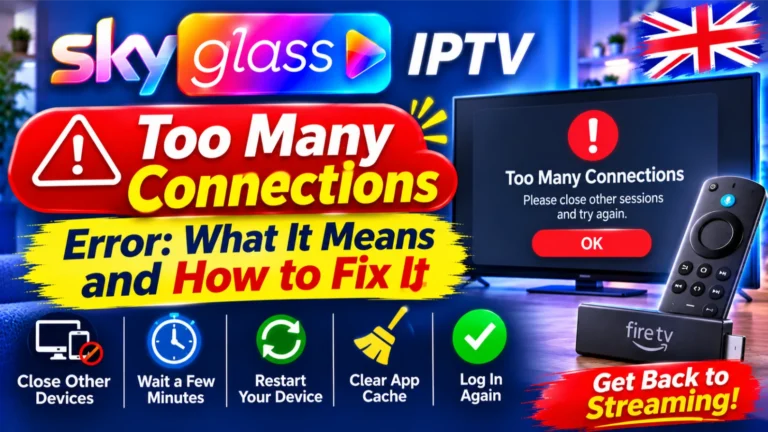
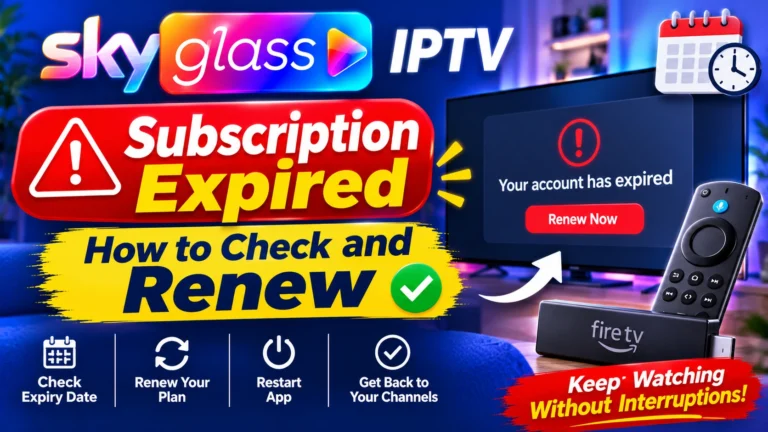
Use the dedicated Sky Glass IPTV login, expiry and too-many-connections guides if one of those messages appears.
6. Check the app and device
Force stop the app, clear its cache and free storage. Check for updates to the app and device software. If the app keeps closing, follow the crash troubleshooting guide.
Reinstall only when necessary and only after you have the correct login details and a verified installation file.
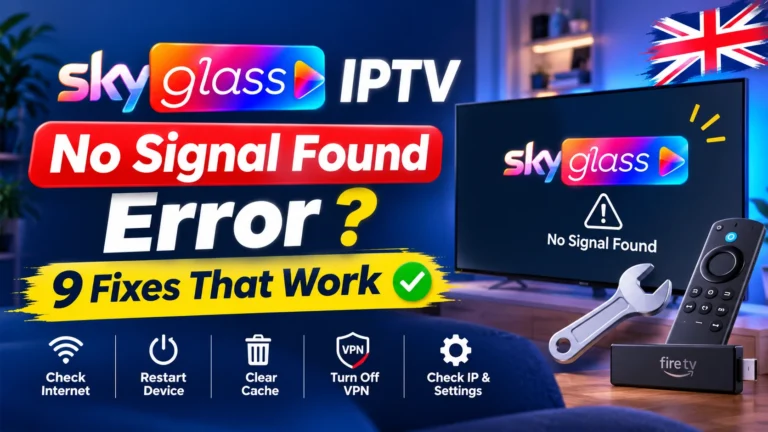
7. Check the TV input and hardware
If the TV itself says No Signal before the app appears, select the correct HDMI input, check the cable and confirm the streaming device is powered on.
If the message appears inside the player, continue with the app and network checks instead.
8. Contact support with useful details
Send the device model, app version, exact error, approximate time and whether other channels or apps work. Include the steps already tried so support can avoid repeating them.
Share account information only through the verified support channel. Never post passwords, full payment details or private playlist links publicly.
Frequently Asked Questions
Why is Sky Glass IPTV not working today?
Possible causes include a local internet issue, app fault, account status, device problem or a channel-specific interruption. The symptom helps identify which.
What should I try first?
Check another app, restart the device and router, then test more than one channel.
Why does it work on my phone but not my TV?
The TV device may have weaker Wi-Fi, a different app version, limited storage or an incompatible player setting.
Should I reinstall the app?
Try restarting, clearing cache and checking updates first. Reinstall only if the app installation appears damaged.
What information helps support?
The exact error, device and app version, time of the issue and whether other channels or networks work.
Need more help?
If the checklist does not resolve the issue, contact Sky Glass IPTV support with your results. This makes it easier to distinguish an account problem from a device or network fault.